Admin Guide
Copyright © 2014 Octopus Newsroom
$Date: 2014-12-11 15:48:19 +0000 (Thu, 11 Dec 2014) $
Table of Contents
- 1. Introduction
- 2. Definition of terms and Octopus objects
- 3. Admin interface
- 4. Definition of workflow
- 5. Custom tags
- 6. Story locks management
- 7. Spell-check dictionaries
- 8. Users and user groups
- 9. Wires, E-mails, RSS, SMS, Fax and other information sources
- 10. Notification rules
- 11. Stories export
- 12. Custom print forms
- 13. Commercial agent
- 14. CG control configuration
- 15. Advanced setup
- 16. Defining main menu
- 17. Server monitoring
- 18. Server maintenance
List of Tables
- 8.1. Wire rights options
- 8.2. Story folder rights options
- 8.3. Channel and Rundown rights options
- 8.4. Group roles
- 9.1. Characters examples
- 9.2. RSS configuration fields
- 9.3. SMS configuration fields
- 9.4. FAX configuration fields
- 15.1. General Tab
- 15.2. Story Tab
- 15.3. Wires Tab
- 15.4. CG Tab
- 15.5. System Tab
- 16.1. Main Menu Items
Chapter 1. Introduction
This is the essential guide to OCTOPUS administration, covering all the major tasks that you as an administrator need to complete. It defines the main OCTOPUS objects, illustrates the main workflow setup options and explains step-by step how to handle everyday administration tasks.
To understand administration of OCTOPUS, first study the OCTOPUS user manual as well as the workflow used in your newsroom.
Chapter 2. Definition of terms and Octopus objects
OCTOPUS uses the object model described below.
- Story
-
The story is a basic format of OCTOPUS. It is a story or item that one reporter is working on and can be assigned to that reporter. The story script contains all the text for the anchor, for VOs, or even packages. It also describes all the technical commands like video clips, CGs or graphic pieces used with the story.
- Element
-
Each story contains one or more elements. These are separate parts of a story that your journalists use for composing the stories like anchor intros, packages, VOs, SOTs etc. Each company can have a different naming convention for these and OCTOPUS allows you to define it.
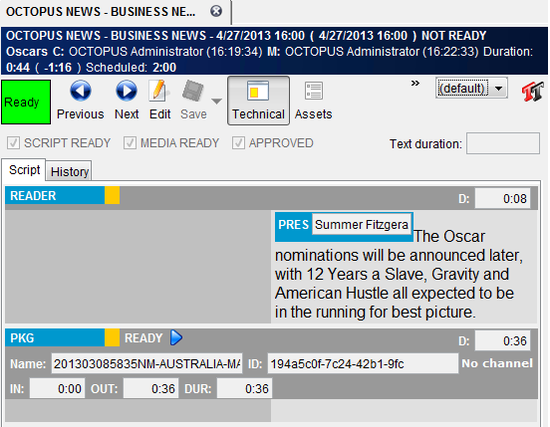
Story script containing “st” and “video” elements
- Rundown
-
When you combine several stories in the list to make a program, it is called a RUNDOWN in OCTOPUS. Each story line in the rundown is called a SLUG. Unlike the story folders the rundown displays the story in the order that they will be broadcast and calculates show times. This is how the on-air program is built.
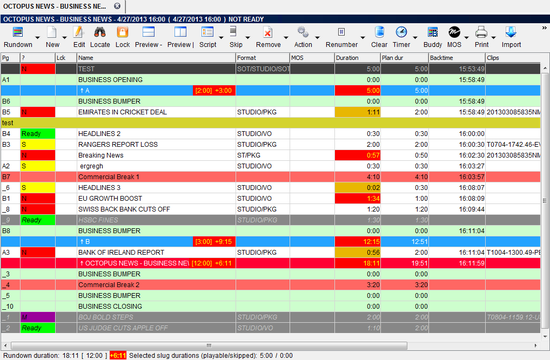
Rundown Preview
- Show
-
“News at 6” or “Sport at ‘15” are SHOWs. Each show has its own rundown, where the stories are put in. Different user rights can be defined for each show type.
- Channel
-
Each show should be assigned to a channel. There is one CHANNEL defined in OCTOPUS for each on-air stream your TV station is producing.
- Story Folder
-
When you organise the stories in groups, it is called a folder in OCTOPUS. Each folder contains stories related to each other, for example all business stories or all sports stories. It is up to you how you define your folder structure.
- Forms and Columns
-
Each rundown, container and some other objects have the visual representation described by FORMs and COLUMNs. Columns and their labels and formats are definable. There are columns with fixed meaning like “story duration” and there are also columns where meaning of them can be defined. The form itself is composed from both of these types of columns.
- Folder
-
Folders are the menu options on the left hand side of the screen. The structure of the menu is defined in the OCTOPUS admin GUI and user rights can be defined to allow each user to see different folders in their main menu.
- User
-
OCTOPUS is only accessible to a list of users defined in the system.
- User group
-
Rights in OCTOPUS are definable for user groups. Users sharing common rights are contained within a same group.
- MOS
-
Media Object Server protocol is a standardised protocol for communication between a newsroom computer system and a third party devices. These may be Teleprompters, Character Generators, Media servers, Playout Servers, NLEs and many more.
Chapter 3. Admin interface
OCTOPUS Admin GUI is available immediately after installation. Accessing OCTOPUS using the administrator account will display all the administrative folders.
The Admin menu will appear on the left side, a typical admin menu will look like the below screenshot.

Admin menu
Later you will be able to reorganise your admin menu as required.
Chapter 4. Definition of workflow
Regardless of whether you are 24/7 news channel, a multi-channel entertainment company or a regional channel with one news show per day and regardless of the workflow you are using in your newsroom, you have to define the following areas before OCTOPUS can be used by journalists. This step-by-step guide will help you through this process. The original configuration can be changed in future. It is not essential to follow this sequence exactly, but it's a good idea to ensure that you don't forget anything. Before you start, you should be familiar with your newsroom workflow processes.
4.1. Story elements
Select Admin/Story/Elements from main menu and use New button to create new story elements. OCTOPUS defines 7 basic story element types (out of which 2 are mostly for backwards compatibility) and 3 special elements types:
- STUDIO
-
This is a live event broadcast studio set. It can be anchor intro or tag, chat with guest. Duration of this element is always counted from text. There is actually no clip assign to it. The text of the STUDIO element is sent to the prompter screen.
- VIDEO
-
Any piece of video or audio material played from any kind of device. Examples are package (PKG), SOT (sound on tape, soundbite). Duration of this element based on either a ready video clip that has been added or, if there is no clip or attached clip is not ready yet, then duration is based on the estimated slug duration. This element is usually not sent to the prompter. (this can be configured)
- VO
-
This is a video element where the audio comes from another source (usually live). This can be VO (voiceover – anchor speaking over rolling tape) or a graphic (realtime graphic with anchor comment) but also a phone call (photo of person speaking and sound from phone hybrid). The duration of this element is always based on the text, not from the duration of the clip. This element is usually sent to the prompter.
- LIVE
-
This element is defined by external live source. Duration is based on the estimated duration of the slug. The LIVE element is sent to the prompter.
- LIVEVIDEO
-
Duration is always based on estimated duration of the story. It is possible to add a clip to this element.
- TAPE
-
This element is for adding a tape from the OCTOPUS tape library to the story. Duration is based on the IN and OUT points entered for the tape. This element is backwards compatible with OCTOPUS5 behaviour and it is normally not used (as most customers are using MOS nowadays)
- LEGACYVIDEO
-
Any piece of video or audio material played from any kind of device. Examples are package (PKG), SOT (sound on tape, soundbite). Duration of this element based on either a (any, event not-ready) video clip that has been added. If there is no clip or a not ready clip, duration is based on the estimated slug duration. This element is backward compatible with OCTOPUS5 behaviour.
- JINGLE
-
This special element is placed in special stories called JINGLES. These are all the bumpers, opening and closing graphics or fillers. Usually the JINGLE story type is added to show templates. The duration of a JINGLE is based on the duration of the clip assigned. JINGLES are not sent to the prompter.
- INSERT
-
Special element that allows import of content from external systems via special OCTOPUS service. This is used usually for commercial scheduling from third-party traffic systems. Again, this element is used in stories in show templates. INSERT is never sent to prompter.
- BREAK
-
A gap in broadcast of defined Rundown, typically handing over to different control room to broadcast advertisements. A special element that has only a duration and no other content.
Here are some of the custom elements definition based on basic element types:
- PKG
-
based on Video
- VO
-
based on VO
- Intro
-
based on Studio
- Tag
-
based on Studio
4.2. Story templates
When a story is created in OCTOPUS one of the story templates has to be used. Story templates contain a sequence of elements in an order that they would commonly be used, for example ST/VO or ST/PKG. Story templates can be edited in the same way as a script allowing entry of predefined text, formatting or other parts of the script.
For example you can create a template for the show opening with a basic welcome sentence and a lower third for the anchor, which speeds up the script writing for journalists. To create a new story template go to Admin/Story/Templates from main menu and hit the NEW button on the toolbar. Enter the name of the story template (this would typically be in the format ST/PKG for example) and tick the box if this should be the default template for all newly create scripts. Next select the new story template and click on the SCRIPT button on the toolbar, this opens the template and allows editing in the same was as creating a script. (See the OCTOPUS User Guide for details on script writing).
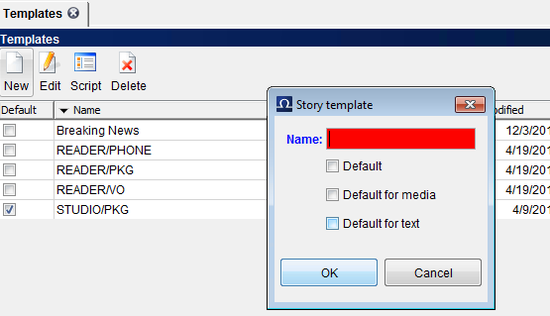
Story Templates Section and New Story Template Dialogue
4.3. Story status
The story status identifies how far along the production process the story currently is. There are 16 states with definable colours and rules; these should be configured to indicate the different stages of your story production process.
Here is one example of how story status might be configured:
- RED
-
story is assigned, but nothing done
- BLUE
-
script is done, reporter has ticked the “script” tick box
- ORANGE
-
visuals are done for this script, reporter ticked “visuals”
- GREEN
-
story is ready to air, producer has checked the visuals and other content and ticked “ready to air”. The story is now automatically locked and only users with Masteredit user rights can modify it.
To define a new “workflow checkpoint” or status, go to Admin/Story/Status and then choose the states tab. Choose one of the unused rows and click the EDIT button on the toolbar. Type the name of the new story state and tick the active tickbox.
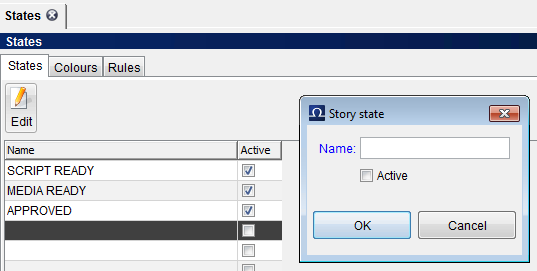
States Tab of Status Section and Edit Story State Dialogue
Next choose the colours tab to choose a colour to be displayed when the rules matching your new story state are met. Click NEW on the toolbar and then click on the coloured square to display a palette of available colours, click the required colour on the palette. You can also choose some text to be displayed within the coloured status indicator, such as S for script, V for visuals etc. There is also an option MASTEREDIT, this should generally only be ticked for your READY TO AIR status.
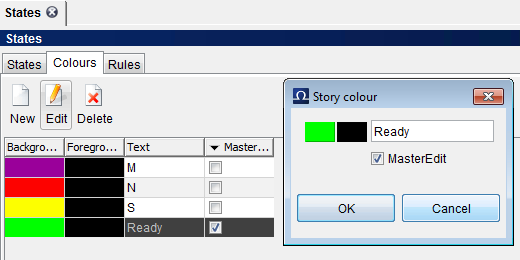
Story Status Colours Tab and Edit Story Colour Dialogue
To create the story state rule, click the Rules tab. To create a new rule click on the NEW button on the toolbar. The New Story Status Rule dialogue contains three drop down lists, the first is for choosing IF/IF NOT, the second for the name of the story state and the third is the colour that should be displayed if this criteria is met. Rules can be dependant on other rules, this can be achieved by leaving the top level rule without a colour defined and then dragging and dropping other rules on top of that – as in the below example.
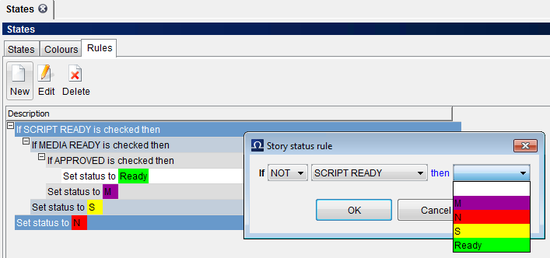
Story Status Rules Tab and Edit Story Status Rules Dialogue
4.4. Story descriptions
An unlimited number of plain-text description fields for stories can be defined. In most newsrooms, just one story description is sufficient and nothing extra needs to be added. However it is possible to create multiple story description tabs. This is particularly useful for planning/newsgathering folders which allow editing only of the description tabs and not the actual script body. Please see the Story Folders chapter of the user manual to become familiar with these types of stories.
To create extra story description tabs, go to Admin-Story-Description and click the NEW button. All that is required in the new story description dialogue is to enter a name and tick the enabled box.
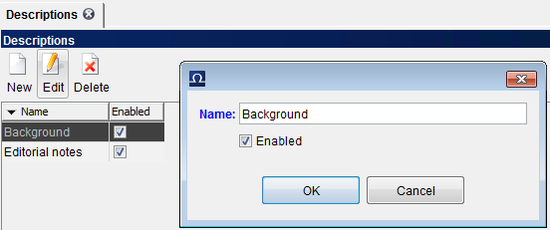
Story descriptions list
Story description templates allow you to have text and formatting automatically added to the description tab. If you would like to create a story description template for use with this new story description tab, go to Admin-Story-Description Templates. Choose the newly created story description from the drop down list below the toolbar and then click on the NEW button on the toolbar. Give the template a name and then enter in the text field below any text that you would like to have added by default to the story description when this template is applied, click OK.
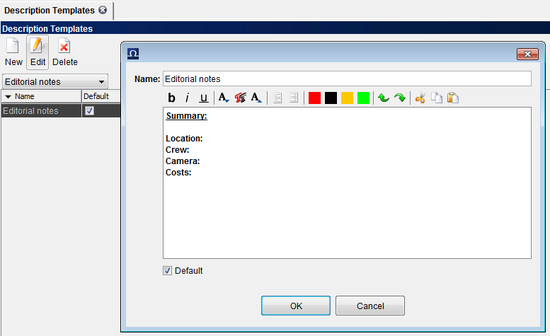
Story description edit
The new story description will now be available when a new script is created or later when editing the script properties in a normal scripting story folder. In the newsgathering/planning folders these story descriptions will be displayed when double clicking the story from the list or by selecting the story and clicking EDIT on the toolbar.
4.5. Jingles and CGs
You need to predefine your Jingles and Character Generator templates in order to be able to use them in stories/rundowns later.
4.5.1. Jingles
Jingles are usually short clips used at the start or end of a show and/or before or after breaks. With MOS integrated media, you can obtain exact jingles from your Media Server and use them in your rundowns. But first you have to create “links” to them in OCTOPUS. To define your jingles, go to Admin/Story/Jingles section, and hit NEW toolbar button.
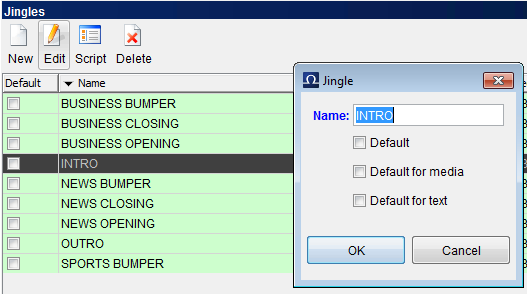
New Jingle – Dialogue Window
Fill in name of the jingle, and click the default tickbox if you would like this to be the default Jingle and then click OK. Now click on the SCRIPT toolbar button, and then click EDIT on the script toolbar. Right click in the script editing area and choose NEW – JINGLE. To add clip to this jingle element, either start typing in the name of the clip into the Name field and choose from the drop-down list of matching media, or right click on the dark grey part of the media form and choose MOS – BROWSE and then choose the clip from the Browse Media dialogue – see screenshot on the following page. (For more detailed advise on adding media to scripts, see the Scripts chapter of the OCTOPUS User Guide).
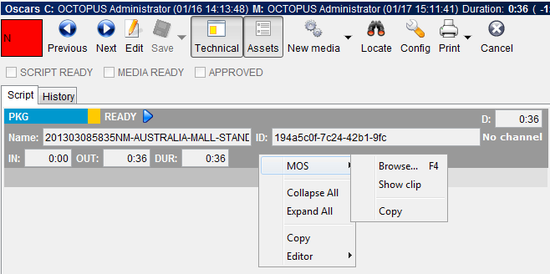
Selecting Browse for Media in Script part of Jingle
4.5.2. Character generator templates (CGs)
Character generators are used for on-screen graphics, displayed while a show is being broadcast or recorded. Character Generators use graphics templates of many types (e.g. on-screen persons’ names & titles, sports tables, etc.) These templates consist of graphics, and predefined spaces for text lines. Texts can be either input manually (by extra staff), or automatically using OCTOPUS CG Sender Application. In this second case, journalists write all the CGs’ texts. A third option is to use a third party active-x to create the CG, including the text, and then add this as a MOS object in the scripts – this option is dependant on the 3rd party Active-X software and therefore cannot be covered in more detail in this guide.
If you plan to use OCTOPUS CG Sender to send the CG text, you have to define the available CG templates in OCTOPUS. You will need some help from the graphics department for this as they will need to provide you with all the graphics templates used by the station. You will need all the CG templates numbers, and ideally JPEG image previews, these can be any size, but generally should be in the same proportions as the actual template to give users an idea of what the actual template looks like. These images are not mandatory, but it is a useful way of providing a preview of the actual template to users.
Create a new folder on the OCTOPUS server within the $OCTOPUSDIR called CG-templates (any location on the server will work, this is just a suggestion) and copy the JPEG files to the new folder. It is a good idea to name these JPEG files as $TEMPLATENUMBER.jpg where $TEMPLATENUMBER is a template number of the particular CG template. (e.g. 5000.jpg; 5001.jpg; etc.)
After you have list of templates and images ready, go to Admin/CG/Templates section of the main menu and click the button.
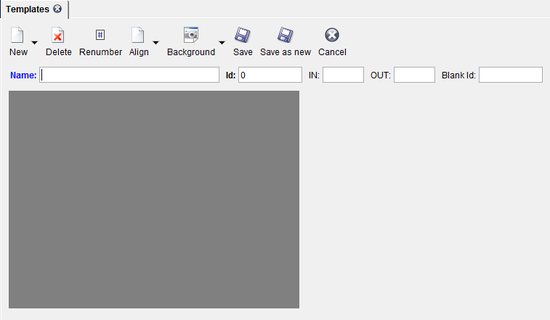
New CG Template – Dialogue Window
Fill in the Template Name (this should be something easily understood by users like Lower Third, 2 Lines etc.) the template ID as provided by the graphics department, the Blank ID - if any (ID of the “blank” Graphics Template) and optionally the IN and OUT times which would be entered by default when users select this template.
To choose the background image click on the background button on the toolbar and browse for the JPEG file that you saved to the server earlier and then click on the button.
To add a new text line, which will be seen on a CG, click the down arrow on the button and choose . You can then Drag-and-Drop it to its real position. There’s an important thing to notice about each of these edit lines, they each have a line number determining the position within the template. The number of lines and their positions must correspond to the numbers and positions of the template on the CG device. Accidental switching two lines, may lead to the text being displayed in the wrong order on the CG machine. If the edit lines are in the wrong order, rather than rearranging by drag & drop, you can click the button on the toolbar which will consecutively number the lines starting from the top-left and ending at the bottom right of the template.
In addition to edit lines, you can also insert labels. Labels are only used to describe an edit lines content. You should use them particularly if you have not provided the preview images as users may have no idea what type of information should be entered in the edit line. To position the labels and edit lines of the CG neatly select the labels or edit lines that you would like to align with Ctrl + click, then click the the down arrow on the ALIGN button and choose the way you would like to align these fields – LEFT, RIGHT, TOP, HORIZONTAL or VERTICAL.
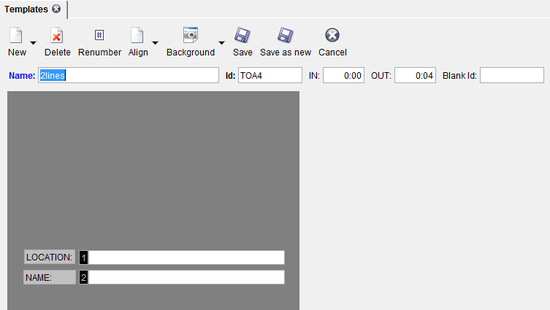
CG Template with Background Image, 2 Labels and 2 Edit Lines
When the template is ready, click the button, which will take you back to templates list.
4.6. Show types
The types of shows in your schedule are defined here. Rundown duration does not matter for show types, at this stage you only need to define the type of program. For example you might have a program News at 6, with 20 minute duration and another News at 10 with 30 minute duration. Just one show type 'News' can be created. A different show type would be created for a Sport bulletin however.
As journalists may work on one particular show type, but should not have access to others, different user rights can be set up for each show type and channel combination. For example you might have two show types, News and Sports; and a journalist that should have the rights to work on the News , but not the Sports programs – defining these show types allows you to define the user rights accordingly.
Enter the // option and add all the show types you need for your schedule. Once entered, the show type can only be edited or archived, not deleted; so be careful to only add necessary show types. The default rundown template can also be assigned here (these will be created the next chapter Step 7). It is possible to set up automatic actions for the show types, including archiving, deletion, or deep archiving (additional configuration is required for this – ask OCTOPUS support). For each automatic action you can define a period of time in either hours, days weeks or months after the show has ended that the action should take place. It is important to either archive or delete old rundowns particularly in 24/7 news channels as keeping numerous rundowns active in the database will take up space necessarily and may eventually slow the system down.
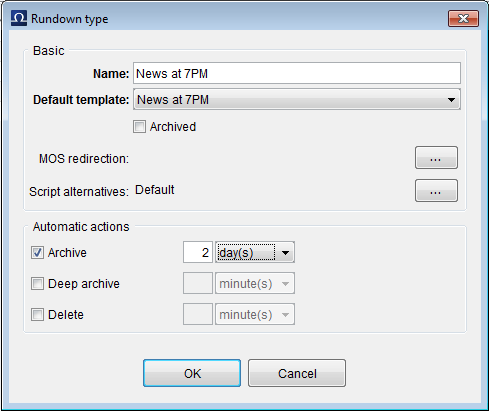
Show Types Preview
4.7. Rundown templates
For each show type at least one rundown template should be created. You may also have several templates for each show type, for example for a “News” show type, there might be a different template for “News at 6” and “News at 10.”
To create a new rundown template go to // and click the button; you will be presented with a dialogue for entry of the template name and planned duration – enter these details and click .
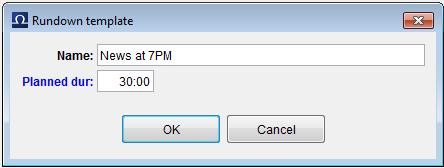
New Show Template Dialogue
For each template, content can be defined. Click the button on the toolbar to get to template editor. The template can consist of any of the usual rundown content; jingles, predefined stories (such as news opening and closing studios), breaks, commercials, segments, text notes and an off-air line. Stories may be marked as skipped if required in the template as well. Any of these items can be created by clicking on the down arrow next to the button on the toolbar and selecting the relevant type of slug. Reordering can be achieved with drag and drop. Creating rundown templates is the same as creating an actual rundown, so for more details on how to create this template, please see the Rundowns and Broadcasting section of the OCTOPUS User Guide. When you have finished editing the content, just close the tab.
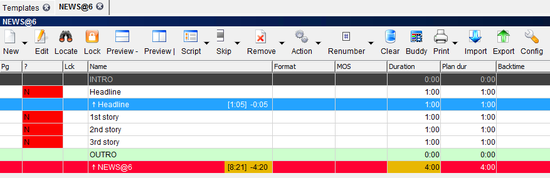
Rundown Template Content
If you have the same program repeated at different times of the day, with the same duration – generally the same template can be used for all of these rundowns, this will make the workflow more straightforward.
4.8. Show schedules
OCTOPUS rundowns are created in advance, automatically, according to the defined show schedule. This means that producers will have the basic outline of the rundowns ready each day, including content like headlines, bumpers etc.
To create the show schedule, go to // and click the button on the toolbar. In the new Show Schedule dialogue you need to name the plan and choose how many days in advance the rundowns should be created from the drop-down list. When the Recreate Rundowns checkbox is checked, OCTOPUS will automatically recreate any shows that have been deleted before their scheduled start time as long as this is after the Create Rundowns From time. You can also add a description for the plan, if this is the holiday schedule then describe its intended use here, then click to save it. More than one show schedule can be created for each channel, but only one at a time can be assigned.
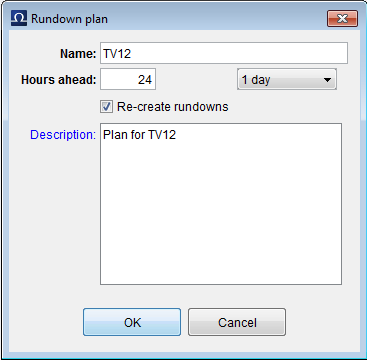
New Schedule Dialogue
To add rundowns to the schedule, select your newly created schedule and then click on the toolbar. The schedule is defined on a weekly basis, to add a new rundown to the schedule click on the toolbar. Choose the required Show Type and Rundown Template, enter the scheduled start time, and check the days that this show will be aired, set MOS redirection (if using MOS) and define the desired Automatic action (Archive, Delete, Deep Archive) and the time frame after the schedule start time that this action should take place. Rundowns can be also scheduled as Connected, which means that the connected rundowns start time will be equal to the end time of the previous rundown, regardless previous rundown’s duration.
To edit the properties of shows that have been added previously to the schedule, select the rundown or rundowns (using Ctrl + click or Shift + click) and then click the toolbar button.
To delete rundowns from the schedule select the rundown or rundowns and hit toolbar button.
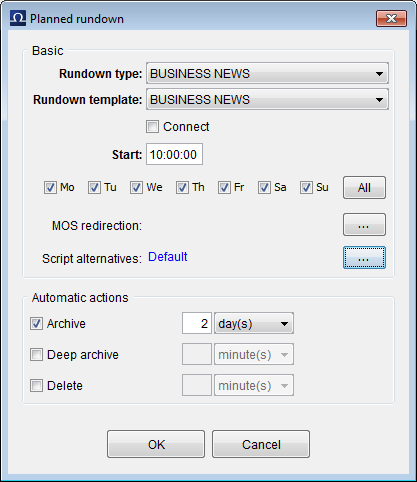
Schedule Content and New Scheduled Rundown Dialogue
When all rundowns have been added to the schedule, go back to the list of show schedules and assign the plan to a channel by clicking on the toolbar. The plan assignment dialogue allows you to assign a schedule for each channel and to specify how long the plan should be applied for in the date and time fields Create Rundowns From: and Create Rundowns To:; if you are going to specify a date range, don't forget that you will need to assign a new plan to the channel at the end of this period. By specifying a date range you can prevent having rundowns created for more than one plan when the switch to a new plan takes place. If no dates are entered the plan will be assigned indefinitely, but note that it will never create rundowns for a time already past or beyond the configured number of hours in advance. The schedule will be applied when the button is pressed; the procedure which creates the rundowns automatically runs periodically throughout the day – if you want the rundowns created immediately, click on the toolbar.
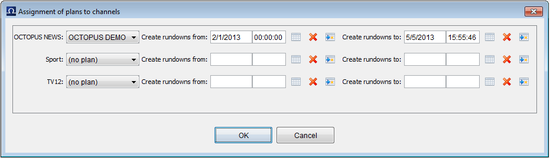
Schedule Assignment to Channels Dialogue
4.9. Story folders
Stories in OCTOPUS are organised in folders. The folder structure is very flexible and can be configured according to your newsroom workflow; consultation with management staff should help you with defining this structure. There are two types of story folders, scripting folders and newsdesk folders (which allow access only to story properties and the background information tabs. If your organisation plans to use Assignment desk folders, possibly you might have separate assignment folders for each day of the week (Mon-Sun). Scripting story folders are generally either based on subject e.g. sport, business, economics; or these folders could be based on shifts Morning, Afternoon, Late etc. The folders structure is dependent on your newsroom workflow; therefore management staff could help you with its definition.
To create story folders, locate to // section in the main menu. Click on the toolbar and enter the name for the folder and enter any required automatic actions (Archive, Delete, Deep Archive), it is a good idea to apply automatic actions to avoid keeping unnecessary material in the database.
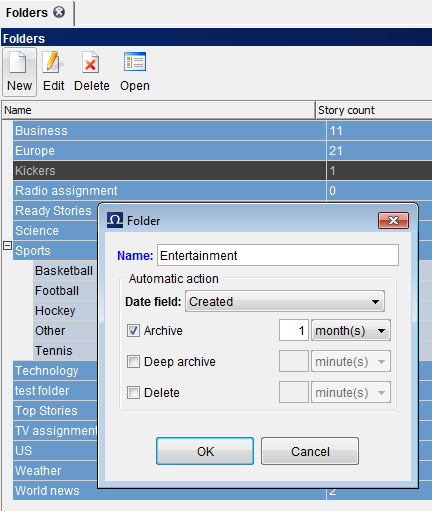
New Story Folder Dialogue
Create all the story folders that you need, note that it is possible to add subfolders by dragging and dropping the story folder onto another story folder. Next go to /. To keep the main menu tidy, it is a good practise to put the story folders in a folder; click the button on the toolbar, choose Folder from the drop-down list in the Main Menu Item dialogue and name the folder e.g. Assignment Desk or Story Pools. Next start adding the story folders by again clicking the button, but this time choose Story Folder from the Type list. Name the story folder, then select the story folder you created earlier from the list below.
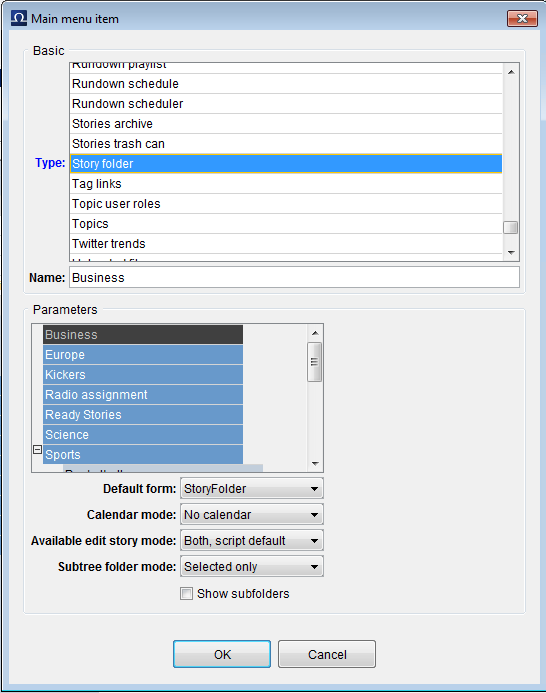
Adding Story Folders to Main Menu
If this should be an Assignment Desk type of folder, choose Story Only from the Available Edit Story Mode list; if this will be a standard scripting folder, choose Both, Script Default.
Calendar mode enables a calendar filter for the folder, this might be particularly useful for Assignment Desk folders so that reporters can easily filter assignments according to date.
Note
See the Story Folder chapter of the user manual to understand how the calendar works
If you would like to add a tree (top level folder and sub-folders) to the menu, choose the top-level folder from the list of story folders and then choose Selected and Subtree from the Subfolder Tree Mode list.
Note
Currently the subfolders will be available only via a drop-down list displayed under the story folder toolbar; in future versions it will be possible to display the subfolders directly in the main menu in a tree.
4.10. System forms, filters and fields
In addition to OCTOPUS automatically saving user forms for viewing lists and users being able to create user their own forms, you can define system wide forms which will be the default for all users when they first open each section of OCTOPUS. For the Media and Rundown list sections custom filters can also be created to allow sorting of the items. It is also possible to change the labels displayed as column headers for all users to localise this part of the interface.
4.10.1. System forms
-
To modify the system forms that will be the default for all users, go to the // section in the client. Choose the form that you would like to modify from the list and then click the button on the toolbar. Do not change the name of a system form, you will be warned if you try to do this. If you want to create an alternative system-wide form for users, first select the original form and click the button on the toolbar, the new form will be added at the bottom of the list with (1) appended to the name.
The list of available columns is on the right, these can be dragged and dropped into the form editor area on the left. The columns displayed in the form editor can be reordered by left clicking on the column header and dragging and dropping to a new position. To resize the columns, hover over the join between the column headers until you see the icon with an arrow at each end, then left click and drag left or right to resize. To delete a column right click on the column header and choose . When you have finished modifying the form, click the button.
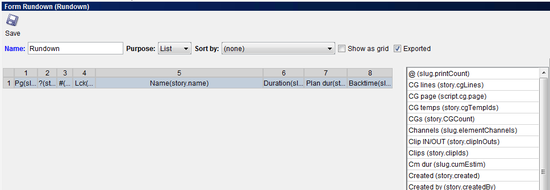
Form Editor showing the Rundown system form
4.10.2. Filters for media or rundown list
-
It is possible to create filters for the section or for the to make it easier for users to find the items that they need. Creating filters is very similar to creating system forms, open the // section of the client and then choose the form that will be used to create the filter – if you are creating a filter choose MEDIASIMPLE, if you want to create a filter for the choose the form called SHOW. The first thing you need to do is create a copy of the form, so select your form and click the button on the toolbar, this will create a copy of the form with (1) appended to the title. Choose the new copy of your form and click on the toolbar.
Once you have the form open in the form editor, enter a name for the filter into the Name field, then select Filter from the Purpose drop-down list. Now you can start adding the required fields to the form, these can be added by dragging and dropping the fields from the list on the right of the form editor. Delete those that are not wanted by right clicking on the column header and choosing Delete. You can add Labels to empty columns, to add an empty column to the form, right click in a vacant area of the form and choose Add New Column from the context menu. Then double click in the new column and type in the text label. Some columns are not allowed to be used for the purpose of a Filter, the following are examples of commonly used Media and Rundown List filters:
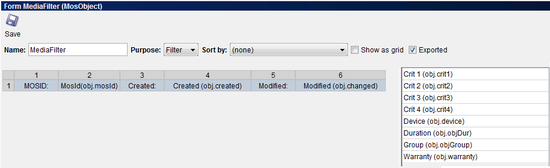
Editing Media Filter
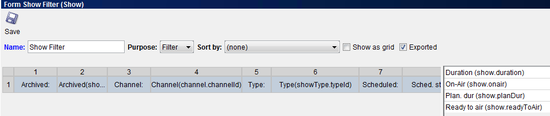
Editing a Show/Rundown List Filter
To test your new filters, open the or section as required, then choose your new filter from the on the toolbar. You should see the labels and fields that you added to the filter displayed above the list as in the example below. Choose the required options/dates available in your filter and then click , you should see the list of items narrowed down accordingly.
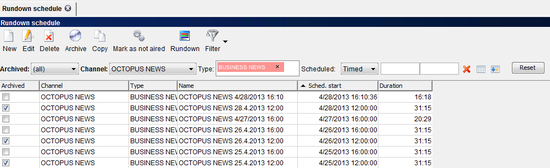
Applying a Filter to the Media Section
Media filters can be added to the main menu to allow users to easily view media items from a particular integrated device. To do this, choose the Media device only and do not filter according to date, then the desired filter to the list. Once the filter is applied, choose from the menu on the toolbar and name your filter according to the name of the integrated media device. Once you have saved the new public filter, there will be a new option on the Filter menu – Add Filter to menu. After choosing to add the media filter to the menu, a new option will be available in the main menu as a sub-folder of media, this will contain the filtered list of media.
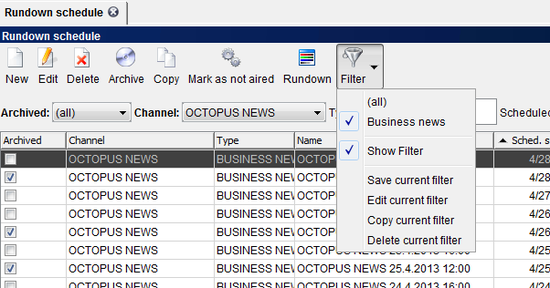
Filter menu showing “Add Filter to Menu” option.
4.10.3. System fields
-
Modification of system field names should be carried out by an OCTOPUS engineer, if you require changes to the field labels or please contact OCTOPUS Support.
There can be up to 64 custom fields for stories and slugs, the data type is configurable. The following types are available:
-
String
-
Wrapped String
-
Number
-
Float
-
Date
-
Date and Time
-
Time
-
Timecode MM:SS
-
Timecode HH:MM
-
Timecode HH:MM:SS
-
Timecode HH:MM:SS:FF
-
Boolean (Checkbox)
-
Dictionary (The dictionary options must also be defined)
-
4.11. Contacts/Guest bid status
To allow proper management of bids and guests you must define the bid statuses in //. Typically you will need at least two statuses, a status for a NEW bid and another for CONFIRMED bids. To create a new status, click the button on the toolbar enter the name of the status and click . For the confirmed status, you should tick MOVE TO GUEST LIST, so that all confirmed bids will automatically be added to the guest list.
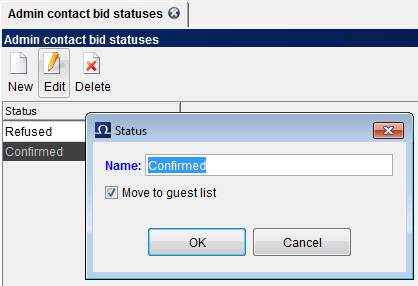
Bid Status Tab and New Bid Status Dialogue
Chapter 5. Custom tags
Custom tags can be created for either marking the script or adding duration. Once created these tags will be available when right clicking in the text editing area of a script and choosing New, the custom tags will be at the bottom of this list. To create a new custom tag, go to the Admin/Story/Tags section of the Octopus Client. Name the tag, choose whether you want it to be a simple mark or a duration tag and enter the text that should appear in the tag. For a simple mark there are formatting attributes available including font size, bold, and foreground and background colours. The duration tag has an additional option for entering a default duration. See the below examples of Mark and Duration tags.
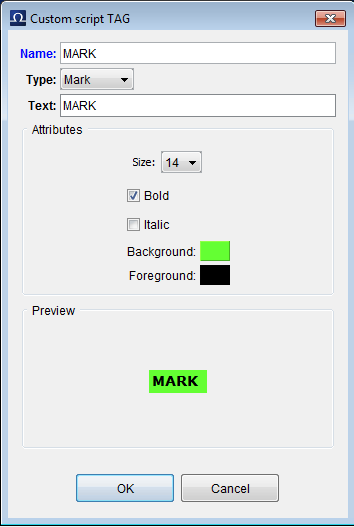
Custom tag - Mark type
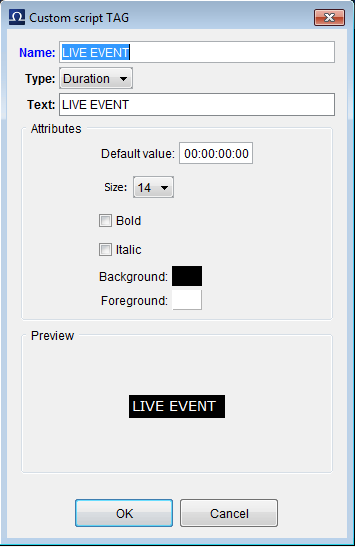
Custom tag - Duration type
Chapter 6. Story locks management
Whenever a script is open for editing, a lock is automatically applied to the story to prevent other users from modifying the story’s content. But, if a user starts editing a story and then forgets to save and close the script, the lock will remain. If other users try to edit this story, they get a message warning them about the story being already locked by someone else. Some users can be assigned the lock picker right to allow them to take over a story lock, see the user rights section of this guide on how to assign these rights. Users could also send a message to the user who has locked the story.
As a last resort, there is the lock manager available in Admin/Story/Locks which will display all current story locks with the name of the story, the name of the user that locked it and the time that the story was locked. There are two options available from the toolbar, SEND MESSAGE and DELETE. Select the lock you would like to manage and click SEND MESSAGE to send a message via OCTOPUS messaging to the user that has locked the story. Otherwise, you can choose to delete the lock – if you do this the user will lose any unsaved work.
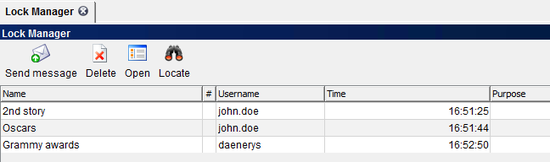
Story Lock Manager
Chapter 7. Spell-check dictionaries
Spell-check dictionaries compatible with Open Office 3.0 (.oxt file extension) can generally be used with Octopus. These files can be downloaded from http://extensions.services.openoffice.org/dictionary These .oxt files needs to be signed by certificate of the Octopus Newsrom and needs to be saved to the octopus\server\extensions\dictionary directory; the OctopusServer service needs to be restarted when a new dictionary file has been added to this directory.
Once the dictionary has been added it should be available for selection via the Config button on the Story Editing toolbar. If you want to apply a spell-check dictionary to all users, click the Admin button, check the Spellchecker option and then choose the Spellchecker Language from the drop-down list and then click OK.
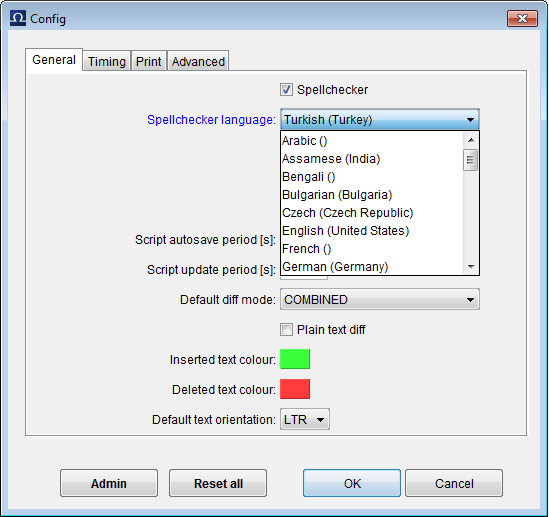
Story Editing Config Dialogue
Chapter 8. Users and user groups
8.1. Authentication
There are two possible types of user authentication in OCTOPUS, basic and LDAP. Under basic authentication the username and password are stored in the OCTOPUS database; all users must be added manually. If LDAP is being used users can be imported from and authentication will be handled by the domain controller. OCTOPUS client stations and the OCTOPUS server should be included in one domain. The username is unique identifier and should not be changed during the system’s lifetime. Regardless of the authentication type, adding users is done via the Admin/Users/List section of the main menu.
8.2. User list
To create new users manually click NEW on the toolbar and then enter the mandatory details: User name, Long name, Short name, Password, Department and Title. The department and title lists depend on your local environment and dictionaries of these need to be created in the Admin/Dictionary/Department and Admin/Dictionary/Title sections.
To import from LDAP, click on the USER IMPORT button, this will show all users in the OU specified during the system configuration. The multi-select list displayed can be filtered. You will still need to edit the imported users to add the mandatory details that are not automatically completed.
The non mandatory fields are accessible to the users by right clicking on the green server status dot in the center at the bottom of the screen and choosing USER PROFILE.
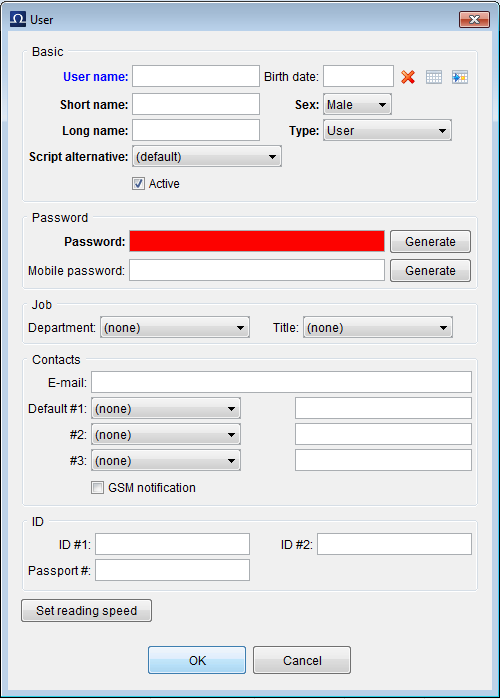
Add User – Dialogue Window
After creating users, they should be assigned a channel. Click the CHANNELS toolbar button to assign users a channel.
User rights set up can be accessed under Admin/Users/Group List. To create a new User Group, click on the NEW button. Under the basic Tab, Enter a Name for the group and then add members to the group either by clicking the '…' icon and choosing users from the multiselect list or by starting to type usernames into the text field next to this.
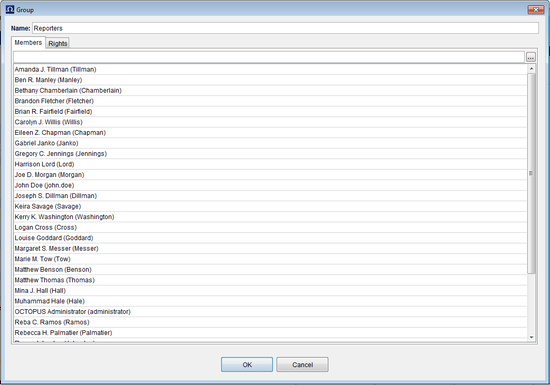
New Group Dialogue
User groups can be configured as a hierarchy, just drag and drop one group onto another and it will become the child group - see the screenshot on the next page. User rights are inherited from the parent group to the child, so the least powerful users should be in the parent group and the basic rights like Read Own should be applied at this level. More senior users should be added to the child groups where additional rights can be applied. User rights that have been applied in a parent folder will appear greyed out in the child folder if a rule applying to the same section is added. For a complicated user rights configuration, you can have many separate top level groups/hierarchies - the Show Rights button available from Admin/User/List toolbar will be useful to determine effective rights in this situation. There are no 'No Access' rights, this removes a layer of complication.
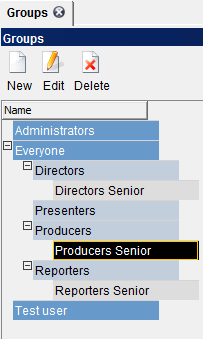
User Rights Hierarchy
The rights tab in the New/Edit group dialogue is where user rights can be assigned for the following sections: Main Menu, Wires, Story Folders, Channel & Rundown, Story Fields, Story Archives, Story Trash, Story State and Roles. Throughout the rights section rules can be added in a the same way, select the area on the left that you would like to configure rights for and then right click in the grey area on the right and choose ADD RULE. After adding a new rule in Menu, Wires, Story Folders, Channel & Rundown and Story Fields you will receive one or more drop-down lists. Leaving the drop-down selection as blank is a wildcard which means that the rules will apply to all of the options in the list. Some of the lists also include groups of items, such as the Main Menu list which will allow you to apply rules to Main Menu items that you have grouped together in folders.
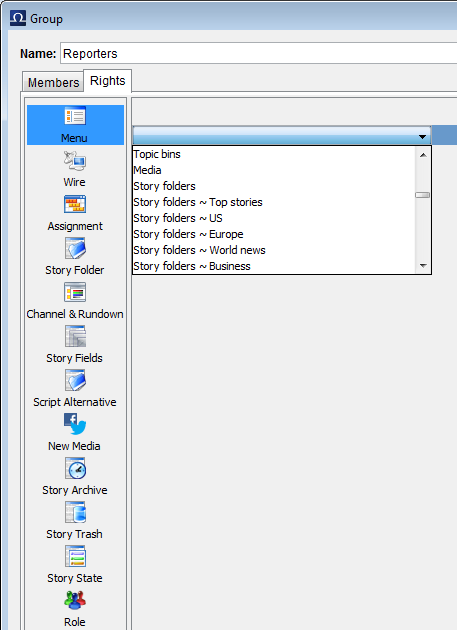
Main Menu User Rights - List of Folders
The first requirement is to assign rights to the main menu, this determines which folders will be displayed and accessible to users in this group. Anything that you select from rule lists will grant the users in that group access to that menu item, there are no tick boxes for these types of rules. Access to the main menu item does not necessarily grant access to the contents of the section, this will depend on subsequent rules.
Wires - Select the wire folder that you would like to apply rules for or select the blank option to apply a wildcard. The options available include:
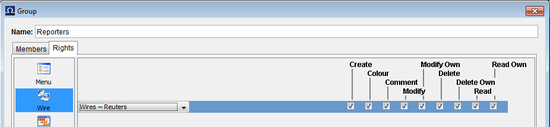
User Rights rule for Wires folder
Table 8.1. Wire rights options
| Right | Description |
|---|---|
| Create | Create a new wire in this folder. |
| Colour | Highlight the wire in the list. |
| Comment | Comment on any wire in this folder. |
| Modify | Modify any wire in the folder. |
| Modify Own | Only wires that this user has created in the folder. |
| Delete | Delete any wire in the folder. |
| Delete Own | Delete only wires that this user has created in the folder. |
| Read | Read any wire in this folder. |
| Read Own | Read only wires that this user has created in the folder. |
Story folder: user rights can be assigned to story folders or story folder groups, the available rights include:
Table 8.2. Story folder rights options
| Right | Description |
|---|---|
| Create | Create a new story in this folder. |
| Delete | Delete any story in the folder. |
| Delete Own | Delete only stories that this user has created in the folder. |
| Purge | Purge any story in the folder. (This removes the story from all assigned locations and is dependent on the user having sufficient rights in each location) |
| Purge Own | Purge only stories that this user has created in the folder. (This removes the story from all assigned locations and is dependent on the user having sufficient rights in each location) |
| Archive | Move to Archive any stories in this folder. |
| Archive Own | Move to Archive only stories that this user has created in the folder. |
| Read | Read any stories in this folder. |
| Read Own | Read only stories that this user has created in the folder. |
| Masteredit | Allows user to modify stories that have been approved as Ready to Air. |
| Lock Picker | Allows user to take over another users story lock. |
| Mos Operator | Allows user to make stories in this folder MOS active. |
Channel and Rundown - rights can be applied to any Channel and Rundown Type combination or wildcards of either type:
Table 8.3. Channel and Rundown rights options
| Right | Description |
|---|---|
| Create | Create a new rundown. |
| Delete | Delete the whole rundown. |
| Modify | Modify rundown properties, also allows deletion of Off-Air lines and Segment lines from the rundown. |
| Read | Read access to the rundown. |
| Archive | Move the rundown to the Archive. |
| Copy to Archive | User is able to Archive a copy of the rundown. |
| MOS Operator | User can make the rundown MOS Active or MOS Ready to Air |
| Lock | Allows user to lock the entire rundown. |
| Archive Slug | Move to Archive any slug in this rundown type. |
| Archive Own Slug | Move to Archive only slugs that this user has created in the rundown. |
| Create Slug | Create a new slug. |
| Read Slug | Read any slug in the rundown. |
| Skip | Skip and/or Clear slugs from the rundown. |
| Move | User can change the order of slugs in the rundown. |
| Manual Start | Allows user to Set the Manual Start time for this slug and start the timer. |
| Delete | Delete any slug in the rundown. |
| Delete Own | Delete only slugs that this user has created in the rundown. |
| Purge | Purge any story in the rundown. (This removes the story from all assigned locations and is dependent on the user having sufficient rights in each location) |
| Purge Own | Purge only stories that this user has created in the rundown. (This removes the story from all assigned locations and is dependent on the user having sufficient rights in each location) |
| Masteredit | Allows user to modify slugs that have been approved as Ready to Air, they also have the right to delete Commercial slugs. |
| Lock Picker | Allows user to take over another users slug lock. |
Story Fields - this section allows user rights to be assigned at the level of story and slug fields. In most situations it may not be necessary to define user rights at such a detailed level, in this case adding full rights to the wildcards is all that is required. If you want to give users access to only certain fields you will need to specify the columns from the list and assign the appropriate rights, which include: Modify, Modify Own, Read, Read Own.
Story Archive and Story Trash – These rights are all self explanatory. You can define whether users can Read or Read Own and Purge or Purge Own in the Trash and Archives. Rights can also be assigned to allow users to Empty Trash or Empty trash Own.
Story State – For Each defined story state you can specify whether the group has Read or Modify access to the state. If the story state is Ready for Air (including Masteredit) for example, modify rights should be restricted to an Editor group.
Role – The following roles can be granted to users:
Table 8.4. Group roles
| Name | Description |
|---|---|
| Administrator | Has full rights to every part of the system and can change system wide configuration settings. |
| Power user | |
| Reporter | Stories can be assigned to all users with the Reported Role. |
| Presenter | Users with the presenter role can be assigned as the Presenter for a block of text in a script. |
| Mobile user | Users with the mobile role can set the Mobile user password and use the mobile/tablet clients. |
Chapter 9. Wires, E-mails, RSS, SMS, Fax and other information sources
Wires are a source of information from the various news agencies for journalists to work with. The journalists read incoming wires and then use them as background information for writing scripts. Additional information sources covered in this chapter are RSS feeds, SMS, E-mail, and Fax. This chapter focuses on the administration of all data sources coming in to OCTOPUS.
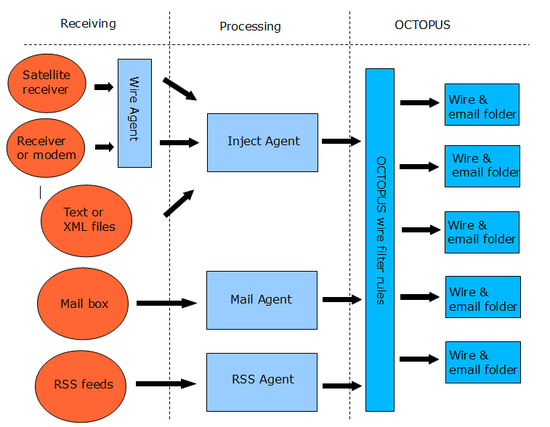
The diagram on the previous page describes how wires, E-mail and RSS feeds are added to the OCTOPUS database.
The WiresAgent receives raw data and converts it to text files. These files (or other files received by different program) are added to the database using InjectAgent. RSS, E-mail and fax are received with special agents and the data is inserted directly into database without Inject Agent. When any of these sources are added to the OCTOPUS DB, Wire Filter Rules must be applied to sort the messages into different folders.
Before it is possible to start configuration, you should know the answers to the following questions:
1) How are the wires received? Are they coming through a satellite or another receiver or modem? In that case it will be necessary to install WiresAgent first to be able to receive data and save it as a text file. The text file will then be processed by Inject Agent and added to database.
2) Are the wires already being received by a third-party program? If so, are the files plain text or XML? When the data is already received in a suitable plain text or XML format, only InjectAgent is required to add the files to OCTOPUS.
3) Is the data being received via E-mail? In this case the MailAgent needs to be installed to receive the mail directly and add it to OCTOPUS.
4) Is it an RSS feed? For RSS feeds we need to install RSS Agent which receives the feed and adds it to the OCTOPUS Database.
5) Are files being received via Fax? The Fax Agent is used to receive fax and add the to the database.
9.1. Working with OCTOPUS Agent
All agent share some properties. All of them can run as Windows services and they can run in the background on linux. Each of the agents can also be run from the command line, in that case it is necessary to execute 'java -jar Name_of_Agent.jar' Agents will typically be installed by the OCTOPUS engineer as part of the initial installation. The most important feature for the administrator is accessing the configuration interface, generally this can be started by running setup.cmd or config.cmd in the directory where the agent is installed (typically C:\OCTOPUS\services\name_of_agent). If the setup.cmd/config.cmd files are not available the config interface can also be run by executing the command: java -jar Name_of_Agent.jar -s (please note the last parameter -s).
Some of the configuration parameters are common to all of the agents – these parameters are found in the tabs called: Log, Warning and Server (tab Server is not present in Wires Agent as it does not need to connect to the database).
- Log tab
-
Here it is possible to set up the path for log files. It is recommended to put all log files into the directory: $OCTOPUS_installation_folder$/services/Name_of_the-agent/log.
E-mails can be sent automatically from OCTOPUS agents when errors are found, you will need to set up the log forwarding details for this to work. The Network listener field can be kept as suggested by the agent, typically the netbios name. On the next line enter the smtp/mail server details, OCTOPUS requires anonymous access to the SMTP server. The check box on left side of this line must be checked to enable the email notification. Enter the email addresses that logs should be forwarded to into the fields Immediately and Daily accordingly (use a comma to separate them).
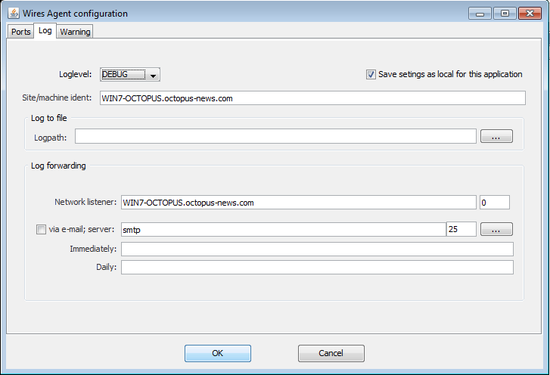
Agent Configuration Interface - Log Tab
- Warning tab
-
The warning tab allows you to specify a number of minutes of inactivity after which the agent will send a warning message to the email addresses added during the log forwarding setup.
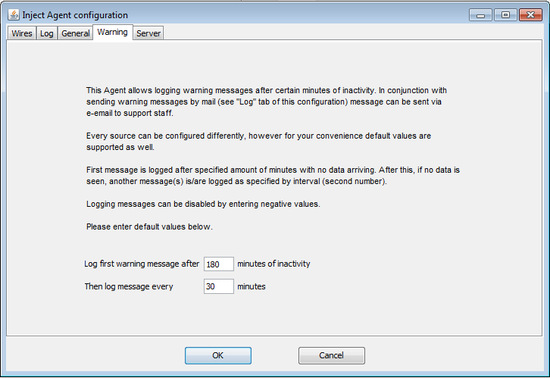
Agent Configuration Tab – Warning Tab
- Server tab
-
The server tab is for configuration of the connection to the OCTOPUS Server. Enter the cluster name to the field Server. The username and password needs to be created in the OCTOPUS client admin/user/list section, choose the agent type from the drop-down list below the toolbar and then create a user for each agent that needs to connect. Then enter this username and password to the server tab and click Test Server Connection – you should see a green highlighted message indicating a successful connection. If the details are incorrect or the OCTOPUS server is unavailable then you will see a red highlighted message 'Can't connect to the server, see the logs for more information.'
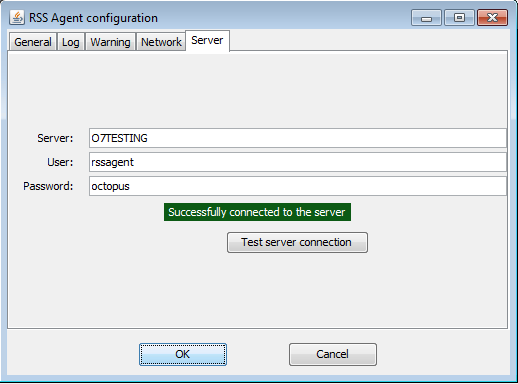
Agent Configuration Interface – Server Tab
9.2. Wire Agent Configuration
The WiresAgent should be used when receiver (satellite, modem or any other device) is connected to the computer through a serial (RS-232) communication port. Configuration details vary from device to device. Please ask your service provider for connection parameters. To add a new wire connection, click the ADD button on the PORTS tab. The following screenshot is an example of how it can look after completing the required details.
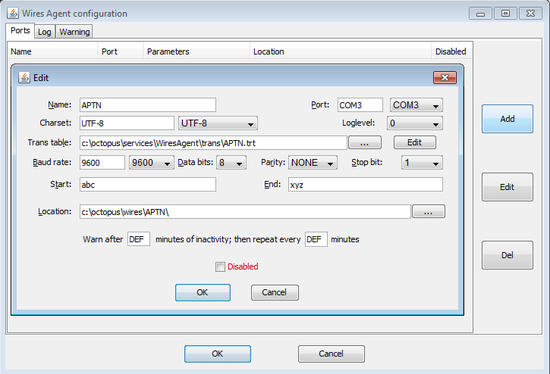
WiresAgent Configuration Interface – Add New Wire
In the Wire Agent, the Name field is just used to distinguish the sources.
The connection parameters required from the service provider include:
COM port settings: COM port (which port is device connected to), Baud rate, Data bits, Parity, Stop bit.
Information about the raw data: Charset, Start and End characters (Characters used to indicate the start and end of each wire message)
The received messages will be saved as text files in directory specified in the Location field, therefore a connection to the OCTOPUS server is not required.
Sometimes it is necessary to use a translation table, this allows you to convert characters to something more suitable when the charset of the raw data differs from the charset on the computer running the WiresAgent. The characters which we don't want to display can be replaced by other characters.
The translation table needs to have the extension .trt. Each line should contain an entry like: A = B. A is unwanted character, B is the replacement. B is always a string value. A can be in one of following formats:
Table 9.1. Characters examples
| Example | Description |
|---|---|
| u99 | Character 99 in Unicode |
| x99 | Character 99 as hexadecimal value |
| 99 | Character 99 as decimal value |
| "x" | String value |
Example formulas: x4F = "c" | u0A = "r" | 125 = "z" | "\u" = "u"
When you have completed all the required fields in the ADD new wire dialogue, click OK to save the changes. To modify these settings use select the wire from the list in the ports tab and click the EDIT button, or to delete it click DELETE.
9.3. Inject Agent configuration
The purpose of InjectAgent is to read any text file (whether received by WiresAgent or not) and insert it into the OCTOPUS database. Open the InjectAgent configuration interface and select the Wires tab, click the ADD button to open the new wire dialogue.
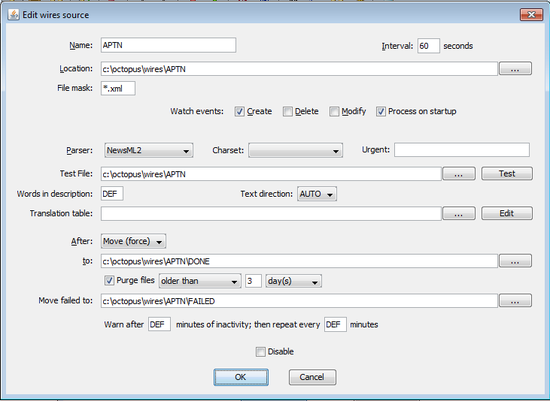
Inject Agent Configuration Interface – Wires Tab
The Name field is very important in the InjectAgent wire tab. Most of the wire filter rules will be based on on this field, in the OCTOPUS admin/wire/rules section it as referred to as 'source'.
In example above, the Inject Agent is watching the folder /OCTOPUS/wiredata/APTN (Location) every 10 seconds (Interval) if new files (Watch events) are created. Also all files in the specified location would be processed on startup of Inject Agent.
After processing, the files are moved to folder /OCTOPUS/wiredata/APTN-done (After and To fields). The option force means that file with same name would be overwritten. Files that cannot be parsed would be moved to /OCTOPUS/wiredata/APTN-failed any problems (Move Failed To:). It is not essential to move or copy the files after processing, the field 'To:' can be left blank.
Translation table field has same functionality as the Wires Agent translation table. Please see the previous section for details.
In our example, the parser called IPTC7 (Title switch) is being used for the APTN wire. Inject agent contains some other built-in parsers like NewsML or NewsML2 for XMLs. For wire formats that do not follow the industry standards, a custom script can be created. To start writing a new script choose 'Custom script' or 'Custom JavaScript' in the combo called Parser and then click the button Edit (on the right of the Script field). Writing a custom script is quite simple, the required syntax and instructions are available via the Help tab – see screenshot below.
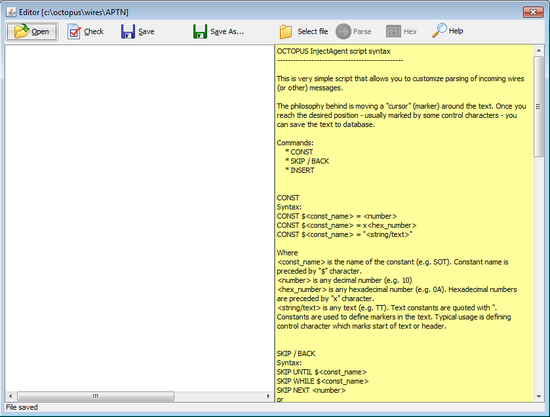
InjectAgent Custom Script Editor
For advanced scripts (necessary in cases where not all wires in the feed are in the same format) it might be necessary to write a Custom JavaScript instead. On-screen help is available in the same in a tab as with the Custom script. If you need assistance with writing these scripts, contact OCTOPUS Support.
9.4. RSS Agent Configuration
The general tab of the RSS agent configuration includes a few basic settings; most of the configuration for RSS feeds can be done in the Admin section of the Octopus client. The settings available are:
Table 9.2. RSS configuration fields
| Name | Description |
|---|---|
| Interval | How often the agent connects to OctopusServer in seconds. |
| Temp Path | The path for storing temporary files. |
| Proxy Host | If a proxy server is used, enter the hostname or IP here. |
| Proxy Port | If a proxy server is used, enter the port number used. |
| Timeout | Timeout in seconds, default is 30. |
| Description Count | Number of characters to be included as description. |
To add a new RSS feed, go to the Admin/Wires/RSS feeds section of the Octopus client and click the new button on the toolbar. You will see a dialogue box like the one below. Enter a name for this RSS feed in the Title field. The URL of the RSS feed should be entered as it would be accessed in a web browser into the URL field. Should credentials be required, just put them into URL like http://user:pass@server/location. Source is used for setting up wire filtering rules, so whatever you enter here must match your entries in wire rules. You can also set up wire rules within this dialogue by choosing from the available wire folders in the Store To field and ticking the Change Filter Rule tickbox. The refresh interval will determine how often the RSSAgent will check the RSS source for new items. Additional options include Save Offline and Extract Text from Page, choosing extract text from page will allow the body text for each RSS item to be viewed in Octopus.
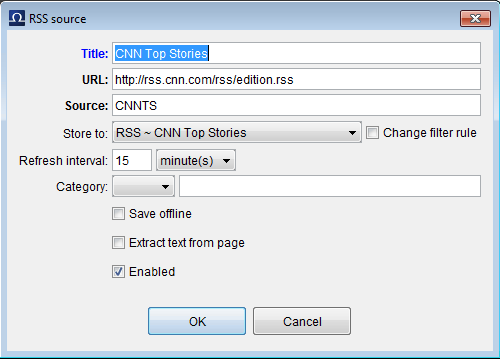
New/Edit RSS source dialogue
9.5. SMS Agent Configuration
Octopus SMS integration requires a GSM module to be connected via a serial connection to a machine with the Octopus SMS agent installed. The general tab of the SMSAgent has a few basic options, much of the configuration can be done in the Admin/SMS section of the Octopus client. The Name field on the SMSAgent general tab should match the name given to the SMS agent in the Admin/SMSAgent section of the client. The Port field is for entering the COM port that you have attached the SMS module to; and speed allows you to choose the appropriate baud rate.
The configuration options within the Admin/SMS section of the Octopus client are shown in the table and screenshot below.
Table 9.3. SMS configuration fields
| Name | Description |
|---|---|
| Name | This should match the name entered in the SMSAgent general tab. |
| PIN | The PIN number for SIM card in the GSM module. |
| Sending Messages | Enables Sending SMS messages using Octopus chat/instant messaging. |
| Receiving Messages | Enables receiving SMS messages into a wires folder. |
| Message Life | How many SMS be stored on the GSM module. |
| Message Validity | How long days the GSM module will try to deliver the SMS to the number. |
| Message Encoding | TEXT or UCS2. |
| Provider SMS center | The phone number for the SMS providers message service center. |
| Enabled | Tick to enable this SMS agent. |
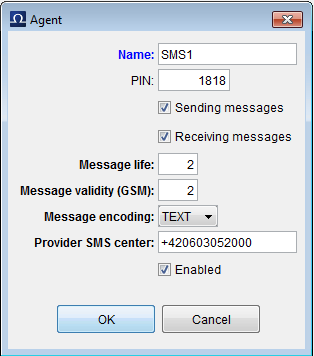
SMS agent configuration dialogue
To enable sending of SMS messages via Octopus Instant messaging or chat, GSM providers must be configured and users mobile numbers must be entered in their profile. To add GSM providers, go to Admin/Dictionary/GSM and click the NEW button on the toolbar. Enter the name of the service provider, the dialling code eg +420, the SMS format e.g. TEXT, and lastly the SMS character limits for the subject and body of the message. Users must edit their profile, choose a GSM provider from the drop-down list in the contacts section and enter their mobile number in the field next to this.
9.6. Fax Agent Configuration
Octopus FAX agent needs to be installed on a machine that has the fax modem connected. Installation and configuration of the standard agent tabs (Log, Warning and Server) is as described in the above section Working with Octopus Agents. The general tab of the FaxAgent has the following options:
Table 9.4. FAX configuration fields
| Name | Description |
|---|---|
| Name | The name of this source as used for the configuration of wire sorting rules. Typically 'FAX' would be used. |
| Temp Path | Path to store temporary image files, for example c:\octopus\services\FAXagent\temp |
| Image width Scale Factor | An option for resizing the image width by a scale factor – the default is 1.0 which maintains the original width. |
| Image Height Scale Factor | An option for resizing the image height by a scale factor – the default is 1.0 which maintains the original height. |
| Port | The serial port that the fax modem is connected to. |
| Baud Rate | The baud rate used by the modem. |
| Fax Class | Class of the fax modem, available options are 1 or 2. |
| Timeout (seconds) | Default value is 30 |
You will need to configure wire folders and wire sorting rules in the section of the Octopus client to display the received faxes in Octopus, this procedure is described in the following two pages.
9.7. Wire, RSS, FAX, SMS and Email folders
To receive Wires, RSS feeds, E-mails, SMS and Faxes into OCTOPUS you must have already created the wire folders and wire filter rules. To create a new Wire folder, go to and click the button on the toolbar. Name the wire folder according to its intended contents, for example all wires from a source agency might be stored there, for example AP or Reuters, or all wires according to category such as Sport or Economics. There are two settings related to purging of wire messages to avoid storing thousands of old wire messages in the database, Number of days – messages older than the set number of days will be purged, and Number of messages – once this limit is reached the oldest messages beyond this limit will be deleted. If you want to allow wires to be edited by OCTOPUS users or to have locally created wires, you can tick the boxes to 'Apply rules to manually updated messages' or 'Apply rules to manually created messages' to ensure that local content is sorted in the same way. The drop-down list 'After Wire Update:' includes options to have manually updated messages to be moved to the top of the list or to have a copy made with a version number assigned to it.
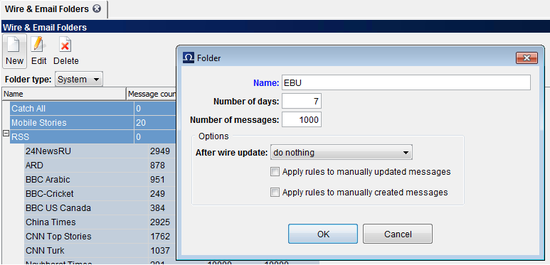
Wire Folder List and Create New Wire Folder dialogue
9.8. Wire Filter Rules
Wire filter rules are always applied when a new message is inserted into the database by one of the OCTOPUS Agents. OCTOPUS will apply all rules starting at the top of the list matching the new message.
Every rule has two parts: a condition (what we are looking for: source, keywords, category etc.) and an action (what will happen to the message: it will be moved to a folder, it will be marked with a colour etc.).
The wire rules are configured in the Admin/Wires/Rules section. To create a new rule click on the NEW button on the toolbar.
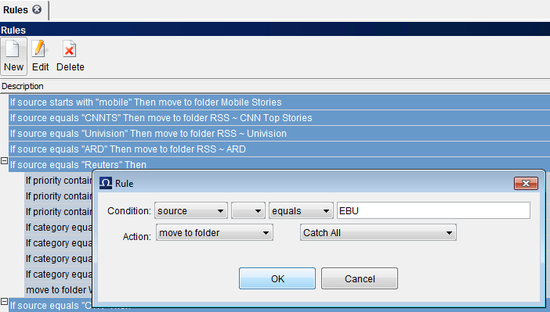
Wire Rules List and New Rule Dialogue
The possible conditions are:
- Always (blank); Source; Priority; Title; Keywords; Category; Subcategory
- IS (blank); IS NOT
- equals; starts with; contains
- String value
- Actions: move to folder; copy to folder; set/reset flash flag; set colour; delete
Rules can be created with any of actions or conditions. Rules can also be created that have sub-conditions, this can be done by dragging and dropping one rule on top of another. In the below example there are three rules applied to all wires that have the source CTK, if the priority equals 1 then the wire will be coloured, if the category equals sport the wire will be copied to the Sport folder, and all will be moved to the CTK folder. If you want to apply subsequent rules to a wire you should COPY the wire and then the last rule should MOVE the wire.
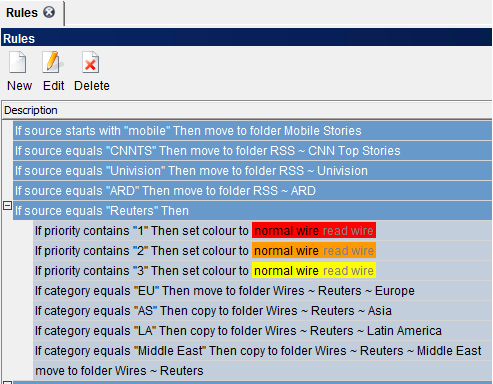
Wire Rules
When creating the rules you can use also the keywords like {TITLE}, {PRIORITY}, {CATEGORY}, {SOURCE}, {SUBCATEGORY} and {KEYWORDS}, for example set subcategory to {TITLE}.
Chapter 10. Notification rules
The administrator has the option to force flash wires to appear in all users system widgets and can also apply notification rules to all users system widgets (see the next page).
To force all flash wires to appear in all users system widget, there is an option in Admin/System Setup/Wires tab which must be ticked – Force Flash to Everyone. Wires rules must also be configured to make wires flash, typically it would be a rule that makes all priority 1 or urgent wires flash.
The Notification rules drop-down list in the dialogue below allows enabling/disabling of notification rules and allowing only private notification rules.
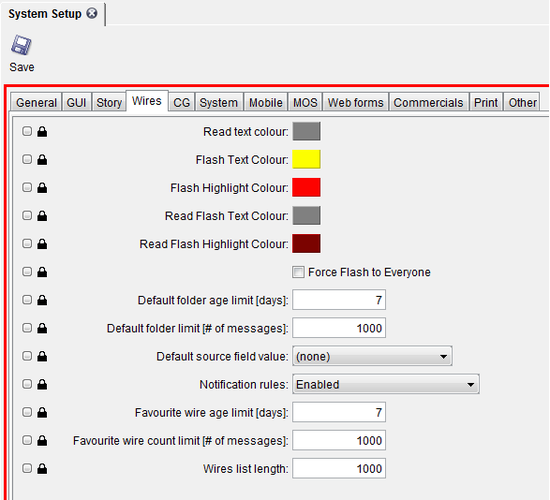
System Setup – Wires Tab
To apply a public notification rule to all users system widgets, while logged in as an administrator right click on the system widget (the one on the left) and choose configure widget. This will open the below dialogue which will allow you to choose the rules to apply from the list on the right, then click the Admin button followed by OK.
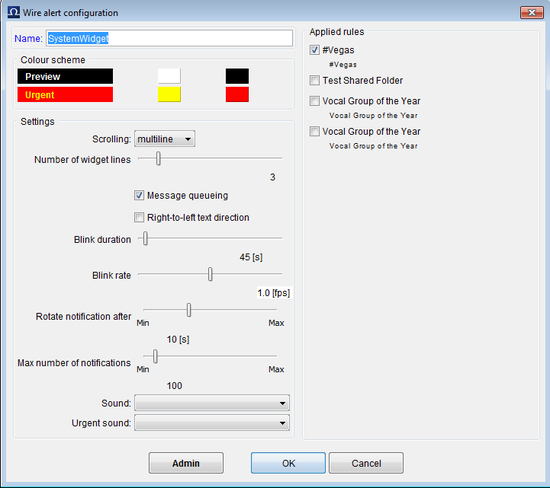
Admin Configure Widget Dialogue
Chapter 11. Stories export
It is possible to export rundowns, slugs, stories, wires and media from OCTOPUS into a structured file or files. There are many situations where this could be useful ranging from export for a website, for a separate subtitling system, an archiving system or even a prompter that doesn't support MOS.
The export framework is highly configurable, so if you need a proprietary export format then please contact OCTOPUS Support to discuss this. We will need to create a custom export script to meet the requirements.
Chapter 12. Custom print forms
Custom print forms can be created to match criteria desired by the customer when printing the rundown, script or prompter. The current print forms can be found under . If this menu item is missing you have to add it into your menu - see the admin guide.
All printouts are rendered at the server upon request issued by client. As the clients can specify different fonts for printouts (of script) these fonts must be present at the server and available to JVM.
Rundown list (that is the rundown slugs view) printing is done dynamically in the server code so that the user gets printed same columns as on screen
If you want to override default print forms you have to name the print form as follows:
-
Script.jrxml - to override the default script form
-
PrompterScript.jrxml - to override the default prompter form
-
Wires.jrxml - to override the default wires form
-
Contact.jrxml - to override the default contact form
-
Script.jrxml - to override the default script form
The priority of form used to print specialized output:
-
$SERVER_ROOT/print directory on server
-
Print forms stored in octopus.server.system.print package in Server.jar
This means that the server will first look into the print directory on the server and if the print form with specified name is not found it will use the print form in the Server.jar
12.1. User case
-
If you are missing some specific columns in the default print forms.
12.2. Tool bar
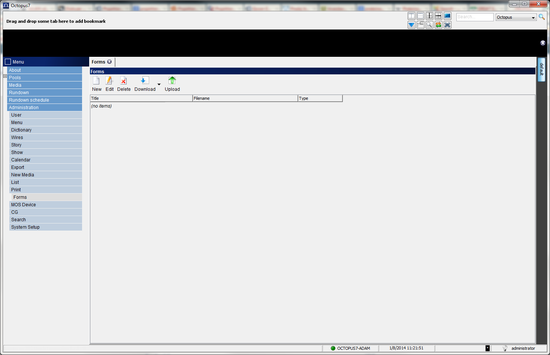
Print toolbar
-
- to add new print form
-
- to edit selected print form
-
- to download selected print form templates.
-
Rundown - the template for the rundown print form without predefined fields
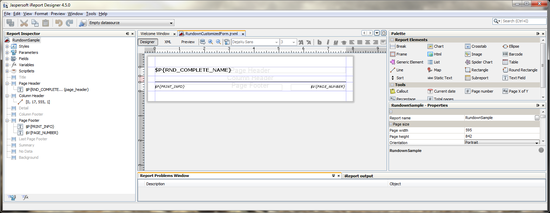
-
Story Folder - the template for story folder print form without predefined fields
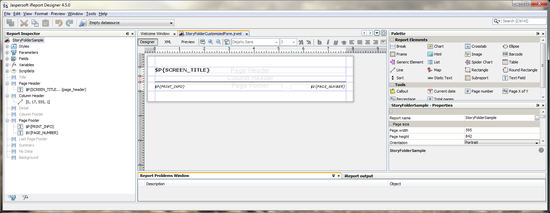
-
Script - the template used when printing the Script or Prompter. The difference between printing the Script and Prompter is that there is a field $F{TECH_CONTENT} which is used only when printing the script
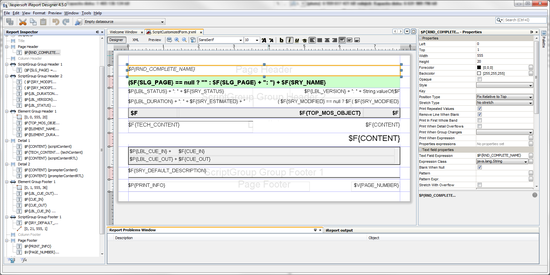
-
Wires - the template used when printing the wire message with predefined fields.
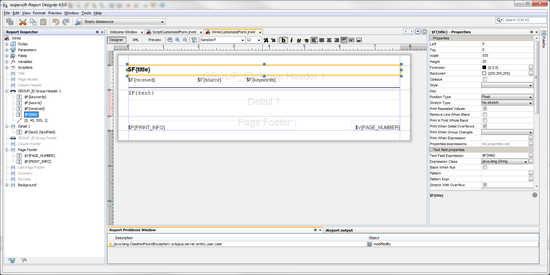
-
Contact - the template used when printing the contact
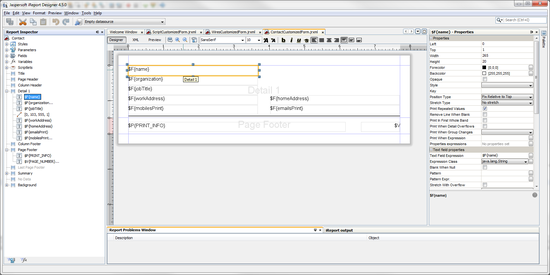
-
Rundown (+fields) - the template for the rundown print form with all available fields
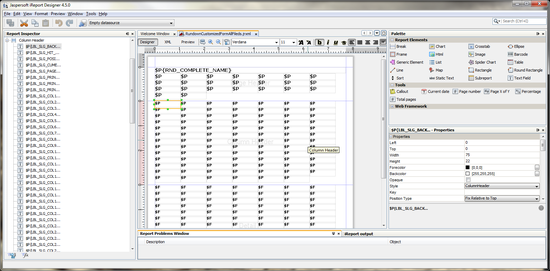
-
Story Folders (+fields) - the template for the story folder print form with all available fields
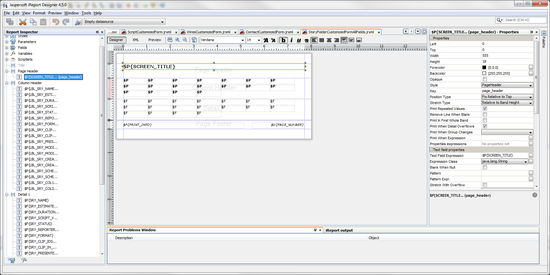
-
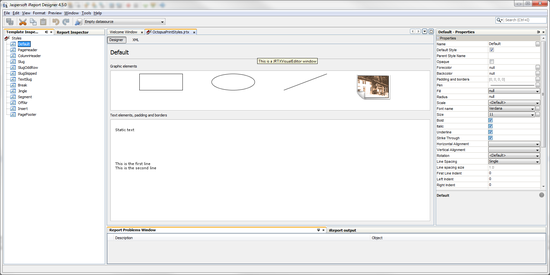
Styles - styles used when printing. Slugs have special print style based on its type to differentiate between regular slug and segment for example.
-
-
- to upload the .jrxml or .jrtx files to the server
12.3. Designing print form
This is done using report forms (Jasper Reports). Forms are created in visual designer iReport. Newest iReport is not compatible so bear in mind that you need version 4.5.0.
You can find particular version in iReport Archive
You can find following sections in the right pane called Report Inspector
-
Styles - the default styles are for all print form templates but you can override the setting by these styles
-
Parameters - list of all parameters available in this form
-
Fields - list of all fields available in this form
-
Variables - list of all variables available in this form
-
Scriptlets - list of all scripts
-
Page Header - here you can define how the page header will look like.
-
Column Header - here you can define how the column header will look like. This is the place where the labels of the columns are used - $P{LBL_%name_of_the_column%}. P means Parameter, LBL means label. So this will take the name of the column defined in octopus AS Fields.
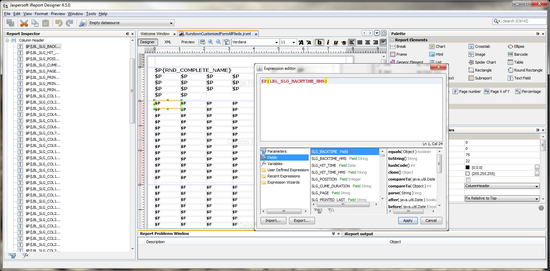
Edit expression - Parameter
-
Detail 1 - this is additional band - you can add your own band if you want. This is the place where you actually defining the look of the content - $F{SLG_%name_of_the_column%} - $F means Field, SLG means slug, SRY means story. This expression takes the content of the particular slug/story field.
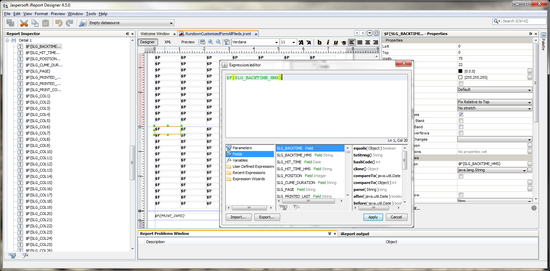
Edit expression - Field
-
Detail 2 - you can define the band just to separate the content
-
Page Footer - here you can define how the page footer will look like.
List of all fields is available in the print form template with all fields. You can easily change the size of the boxes, also the position. You can also delete the fields if you want.
Every field has own properties available in the left pane. There is a plenty options see just few of them: position and size of the filed, colours of the field, style, stretch options, print options, text field properties and text properties like font and alignment, spacing etc.
Right click on the file will give you another options
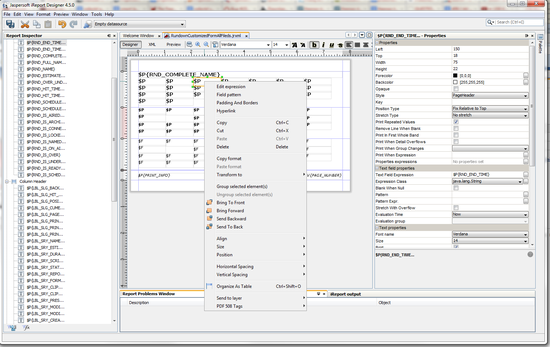
Customized print form
You have to always search for desired option for example Bands have height, every box has height, and then you have a font size. So you have to be aware what exactly do you want to change if the size of the box or just the text or both.
If you select the name of some band, for example "Column Header" you can define the height.
You can find another objects in "Palette" pane which you can use during the designing of the print form.
You can check whether the print form is fine by compiling - it is the button next to the button in the toolbar. It will give you the results and descriptions of the problems.
If the print form is without errors you can switch from the mode into the mode. The iReport will ask you about the content of the fields in the form and will generate preview of the form according to your inputs.
Once you are done in iReport with the print form template save it under different name for example "rundown-test".
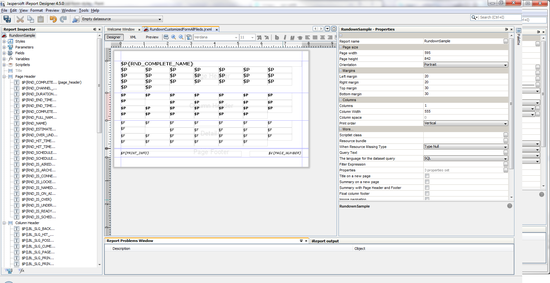
Customized print form
Now you can go into the octopus client and click on select the type "Rundown" and write the name of the form which you want to see in /. Click on the right next to the and select your modified print form and press
12.4. New print form
You can add new print form. Click on the and you will get new window:
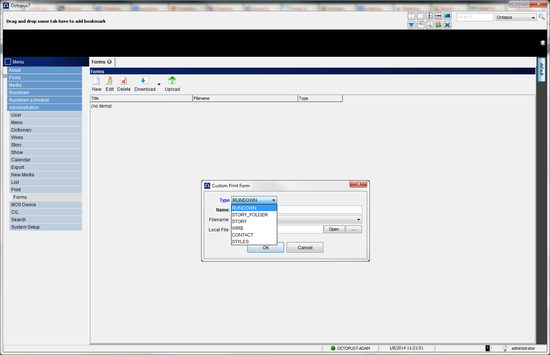
Add new print form
-
Type - you have to select the type according to your needs.
-
RUNDOWN - when adding a print form for rundown - it will appear in rundown under /
-
STORY_FOLDER - when adding a print form for
-
STORY - when adding a print form for
-
WIRE - when adding a print form for wire messages
-
CONTACT - when adding a print form for contact
-
STYLES - when modifying printing styles
-
-
Name - this name will be shown in the /
-
Filename - this can be used when the file was already located under /octopus/server/print/ when octopus server service started.
-
Local File - this can be used when uploading the file to the server from the local computer.
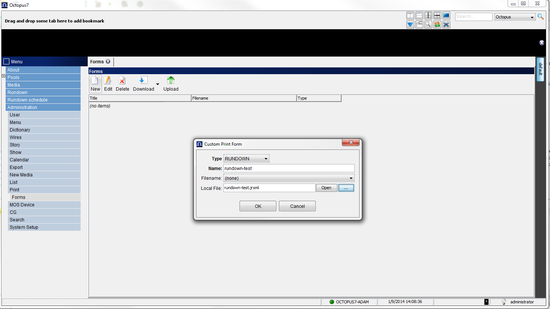
Add new print form
You have to get the message "Print forms were successfully reloaded" in the left down part of the status bar. If there is some problem with the form you will get the message here too.
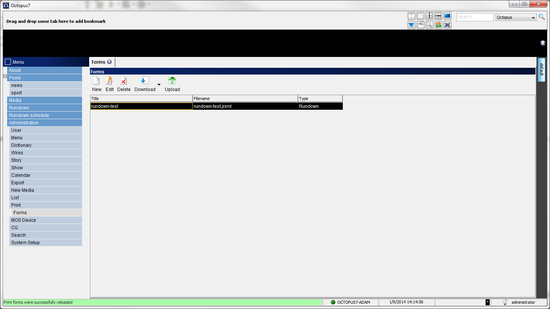
New print form rundown-test in the menu
Then you can open any rundown and click on the select and you will find that template in rolldown box called "Form".
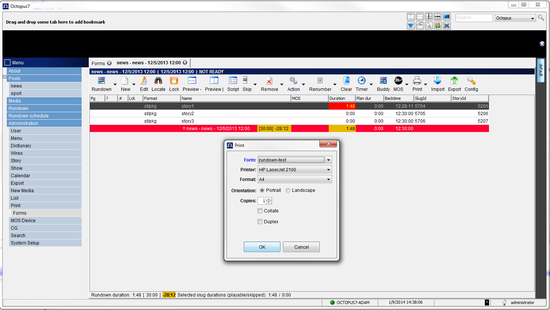
Print/Custom...
Chapter 13. Commercial agent
The CommercialAgent is the program responsible for sending and receiving data to a 3rd party commercial/traffic system. Specifically it will send a list of all the commercial breaks in active Octopus rundowns and receive commercial inserts from the traffic system which are then added to the breaks in Octopus rundowns.
Note
Users with Masteredit user rights can delete commercial slugs from the rundown, to limit the possibility of an inexperienced user deleting a commercial from the rundown, the Masteredit user right should be granted sparingly.
13.1. Commercial agent installation
1) Create a user of CommercialAgent type in the Octopus client Admin/Users section.
2) Install CommercialAgent, copy CommercialAgent files to folder \OCTOPUS$\services\CommercialAgent.
3) Edit the file CommercialAgent.xml file, as in the following example:
4) Install agent as a service by executing 'CommercialAgent.exe install' in command line. It will use CommercialAgent.xml to set parameters. You can check the new key HKEY_LOCAL_MACHINE\SYSTEM\CurrentControlSet\Services\Octopus Commercial Agent to see if everything is as required.
To uninstall is straightforward – run CommercialAgent.exe -uninstall from a command line.
There are some configuration options available in the Octopus client Admin/System Setup/Commercial tab. You can change the TCP/IP port, by default it is 35000. There are also two check boxes available here, Commercial Agent Inserts Stories and Commercial Agent Sends Description of Errors.
To test if the Octopus Commercial Agent is working correctly, first make sure you have an active rundown with at least one commercial slug, then you can connect from a command line by typing 'telnet localhost 35000' and enter BL. CommercialAgent should then return a break list.
Chapter 14. CG control configuration
To use OCTOPUS CG Control, there are several other administrative tasks that must be completed (in addition to CG templates already covered in the section Step 5 Jingles and CG Templates). CG control supports Chyron or Aston drivers via a serial connection. Therefore, amongst other settings, it is necessary to choose the appropriate driver, COM port settings and charset.
14.1. CG devices
This section can be found in the menu under . This is a simple list of the different CG devices that will be used with OCTOPUS CG Control. The only options on the toolbar are NEW, EDIT or DELETE. The NEW and EDIT dialogue just allows entry or modification of a single field, the NAME of the device. Devices in this list can later be chosen by journalists when adding CG's to rundowns and can be used to filter CG's according to device in the CG Control section.
14.2. CG connection
CG Connection is a more detailed dialogue containing most of the required settings, this can be found in the menu under . Again the toolbar has only NEW, EDIT and DELETE buttons. A screenshot of the NEW/EDIT dialogue window is displayed on the next page. Enter the name of the connection and choose the CG device (as created in CG DEVICES section) that this will be used with in the Basics section.
The CG settings section needs to be filled with details relevant to the CG device: you can choose between Chyron or Aston drivers, enter the path to the Font directory, enter the Target page number and choose the charset that needs to be used with this device. Supported charsets include ASCII, Unicode, UTF8 and custom (described in the next section CG encoding).
COM settings contains all the necessary configuration options for the serial communication. Choose the Port that the device will be connected to on the OCTOPUS client used for CG control. Baud rate, data bits, stop bits and parity can be chosen from the drop-down lists according to the settings used by your device.
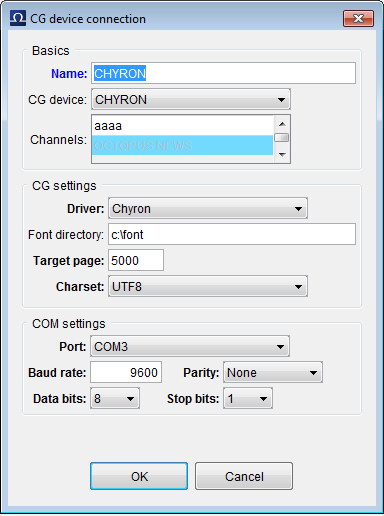
New CG Device Connection dialogue
14.3. CG encoding
To make a customised translation table or character map to be used for CG device encoding, access Admin/CGControl/CG encoding in the menu. This can be used for translation of Unicode characters to Ascii characters. To create a new table click the NEW button on the toolbar. Enter a name for the new translation table. The dialogue has a button FILL WITH ASCII, this might be a good starting point for the new table. You can then use the ADD button to add a new row to the table. In each row you will have to add a valid unicode hexadecimal entry in the first column and in the third column a decimal in the range 0-255 (you can also enter two decimal entries separated by a semicolon for example 48;48 for 00). Other options in this dialogue include EXPORT XML TO CLIPBOARD and IMPORT XML FROM CLIPBOARD.
Chapter 15. Advanced setup
Advanced system configuration options can be found under Admin/System Setup. These settings are system-wide, all users will be affected by anything that you change here. Some of these settings, such as those under the System tab, should not be modified by the administrator unless advised to do so by OCTOPUS support. The below tables list and describe the available settings in the System Setup section tabs.
Table 15.1. General Tab
| Name | Description |
|---|---|
| Timing Standard | Number of frames per second, available standards are PAL, NTSC and NTSCD. |
| Default Reading Speed | The read-rate that will be used to calculate the duration of script text when a presenter is not assigned or the assigned presenter has not set their read-rate. |
| Default Reading Speed Text | You can change the text used in the reading speed calculation dialogue to the local language, the exact length of the text does not matter. |
| First Day of Week | Select the day of the week that will be the first day in the Scheduler. |
| Drag and Drop Threshold Pixels | This sets the range of pixels for the minimum movement required for a drag and drop and the range around the pointer that will start scrolling within a tab. |
Table 15.2. Story Tab
| Name | Description |
|---|---|
| Add Version Number to copied stories | When ticked a version number in brackets will be added to the title of copied stories. |
| Delete History when Archiving | When checked, the history versions of stories will be removed from archived stories. This is recommended to prevent wasting DB space. |
| Total History Versions | The number of previously saved versions that are available in script history. |
| Trash Story Days limit | The number of days that stories will remain before being automatically purged. |
| Status Field Content | Option to display story approval status text, initials of modifier or both in the status field. |
| Rundown deep archive export path | The path where rundowns set to be deep archived will be exported to. |
| Story folder deep archive export path | The path where stories in folders set to be deep archived will be exported to. |
| Rundown Lock Picker Group | A user group that has the right to edit a locked rundown. This is different to a user rights group- if necessary add the User Groups section to the main menu, the group must be Public-Read Only. Users in the group specified here are able to modify locked rundowns no matter how lock extents are configured, the user that locked the rundown and administrators are similarly unaffected. |
| Rundown Lock Extent | Definition of parts of the rundown will be locked by locking the rundown. -OTHER - create new slug, story archive, skip, move, story delete, edit (existing) show, archive show, delete show -SCRIPT - save script, save folder story edit dialog, story commit (production requirement), inline editing -SLUG - renumber, save rundown slug edit dialog, setManualStart, inline editing |
Table 15.3. Wires Tab
| Name | Description |
|---|---|
| Read Text Colour | The colour of read wire title text. |
| Flash Text Colour | The colour of flash wire title text. |
| Flash Highlight Colour | The colour of flash wire highlighting. |
| Read Flash Text Colour | The colour of read flash wire title text. |
| Read Flash Highlight Colour | The colour of read flash wire highlighting. |
| Force Flash to Everyone | All users will receive flash notification. |
| Default Source Field Value | The option to display the source of manually created wires as either Username/Fully Qualified folder name/Short folder name. |
Table 15.4. CG Tab
| Name | Description |
|---|---|
| Width | Default width of a CG template in pixels |
| Height | Default Height of a CG template in pixels |
| CG duration mode | Whether to include IN and OUT or IN and DURATION time fields for CG's. |
Under System tab are advanced system settings and should not be modified unless advised by OCTOPUS support.
Table 15.5. System Tab
| Name | Description |
|---|---|
Chapter 16. Defining main menu
The main menu allows users to access the different OCTOPUS sections. The menu is highly configurable, it is possible to add/remove all sections to match station's workflow. Once the main menu has been defined, access to some sections can be restricted to particular user groups via user rights.
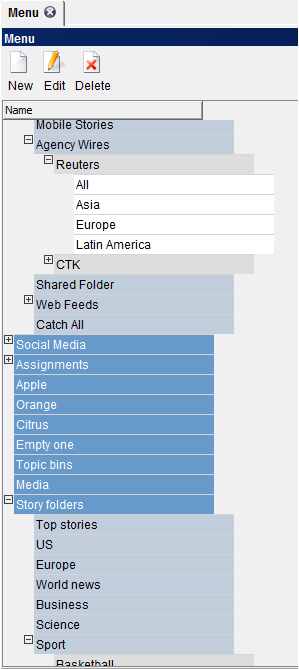
Menu Structure Configuration Tab
In order to modify the menu, go to . There are three buttons , and allowing users to create a new menu item, to edit an existing item or to delete an existing menu item.
To create a new menu item, click the and then choose the required menu item type and type its display name as you would like it to appear in the menu (see image below). There are two general types of menu item: folder and others. Folders are designed to contain other items, thus it is possible to create a menu with any desired structure. For other types of menu item, some additional configuration may be required, particularly wire folders and story folders – which are described in more detail in the Story Folder and Wires sections of this guide.
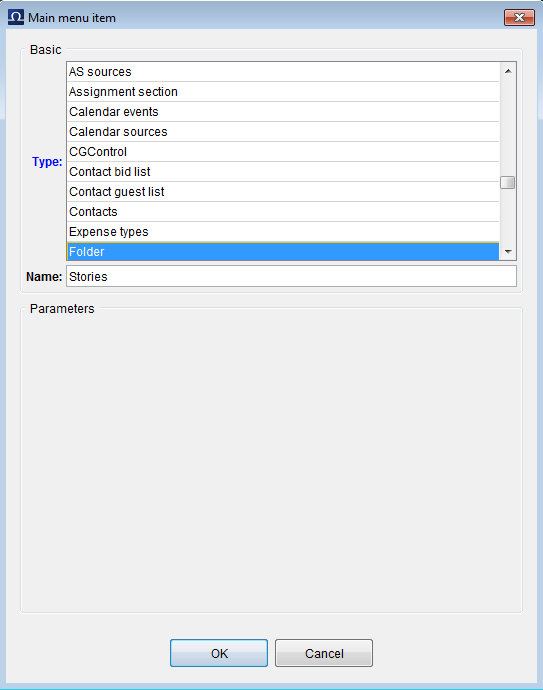
New Main Menu Item Dialogue
The New menu item is always inserted under the currently selected item. In image example above, it will be inserted between XINHUA and TASS wire sections. Items can be moved around the list by drag and drop, the new position is marked with red line before the drop.
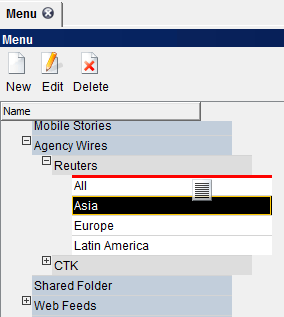
Red line indicating the destination for Drag and Drop
There is no limit to the number of items in menu or the number of subfolders.
The following table lists the available Main Menu items:
Table 16.1. Main Menu Items
| Type | Description | Options |
|---|---|---|
| About | OCTOPUS splash screen | Name |
| ActiveX Inline | 3rd party ActiveX visual components | Name | Plugin |
| Admin Banned Word Dictionary | List of banned words | Name |
| Admin CG Device Connections | Connections parameters of CG device | Name |
| Admin CG Device Encodings | Encoding translation table for CG device | Name |
| Admin CG Devices | List of CG devices | Name |
| Admin CG Templates | List of CG templates | Name |
| Admin contact bid statuses | List of contact bid statuses | Name |
| Admin dictionary breaks | Breaks | Name |
| Admin dictionary country | Countries | Name |
| Admin dictionary department | Departments | Name |
| Admin dictionary GSM | GSM providers | Name |
| Admin dictionary channel | Channels for shows/rundowns | Name |
| Admin dictionary rundown | Show types | Name |
| Admin dictionary title | Titles | Name |
| Admin export formats | Export scripts with editor | Name |
| Admin field dictionary | Dictionaries for custom fields | Name |
| Admin folder structure | Menu structure - items | Name |
| Admin folder type | Menu items types | Name |
| Admin forms | Forms | Name |
| Admin fulltext | Fulltext | Name |
| Admin online users | List of online users | Name |
| Admin RSS feeds | List of RSS feeds | Name |
| Admin rundown templates | Show/Rundown templates | Name |
| Admin search web | List of webs used for searching the Internet | Name |
| Admin story description | Story descriptions | Name |
| Admin story description template | Templates for story descriptions | Name |
| Admin story element set | Sets of story elements | Name |
| Admin story elements | Story elements | Name |
| Admin story folders | Story folders | Name |
| Admin story lock manager | List of all currently locked stories | Name |
| Admin story state | Story statuses | Name |
| Admin story tags | Story script tags | Name |
| Admin story templates | Story templates | Name |
| Admin system setup | OCTOPUS system setup | Name |
| Admin user group list | User groups and rights | Name |
| Admin user list | List of users | Name |
| Admin wire and email folder | Wire, Mail, RSS folders | Name |
| Admin wire rule | Wire, Mail, RSS string rules to folders | Name |
| Advanced fulltext search | Advanced search options | Name |
| CGControl | Control application for CG device – sends the text | Name |
| Contact bid list | List of bids based on contacts | Name |
| Contact guest list | List of confirmed bids | Name |
| Contacts | List of contacts | Name |
| Folder | Special menu type used for better structures in menu | Name |
| Jingles | List of Jingles | Name |
| Media | Media | Name |
| MOS activations | List of active rundowns for each MOS device | Name |
| MOS devices | MOS devices | Name |
| My stories | Stories created by currently logged user | Name |
| Notification Rules | Notification rules used by widgets | Name |
| Remote Octopus | Connection to different Octopus server (not part of cluster) | Name | Remote server name | Remote folders |
| Rundown | List of rundown(s) displayed in menu | Name | Quick rundowns | None | Range | On-Air | Current| Timed| Named |
| Rundown playlist | Graphical view of current shows | Name |
| Rundown schedule | List of scheduled shows | Name |
| Rundown scheduler | List of plans for scheduling | Name |
| Stories archive | Story archive | Name |
| Stories trash can | Story trash can | Name |
| Story folder | Story folder | Name | Story folder name | Displaying modes (Calendar mode, Edit story mode, Subtree mode) |
| URL | Link to Internet site | Name | URL | Start in new window |
| User groups | User groups for messaging | Name |
| Wires and Email | Link to wire or email folder | Name |
Chapter 17. Server monitoring
You can check the status of the servers under Administration/Admin server in the menu. If this menu item is missing you can add it into the menu, see the defining-main-menu chapter.

Print toolbar
Here you can see:
-
Mode - server role, typically MASTER for MAIN and SLAVE for BACKUP and DEGRADED if the server was launched in the wrong order and DEAD if the server is not running
-
Name - MAIN, BACKUP
-
Addresses - IP address of the servers
-
SSL - status of the encrypted communication - enabled / disabled
-
Last time alive - when was the server available
-
# of clients - count of currently connected clients
-
Database mode - MASTER and READ_ONLY
-
Database lag - this number is the difference between the last transactions on the server. In the ideal environment it should be zero, or at least some small number (smaller the 1 000 000) - this depends on the frequency of the transaction exchange between the servers. You can notice that if the number increase it is also decrease from time to time. This is how you can monitor the replication state. If the number grows too much it means that the replication is not running properly.
-
Current xlog - current transaction log
Chapter 18. Server maintenance
Octopus services are set to start automatically so if you need to restart the Octopus server there are no extra steps needed. PostgreSQL and Octopus Server and Octopus services will start automatically.
18.1. Single server solution
-
All services on the server are set to automatic start so administrator does not have to do anything after server restart.
18.2. Streaming replication
MAIN server - all octopus and postgres services are set to automatic start.
BACKUP server - all octopus services are set to manual start. PostgreSQL service is set to automatic start. Just the PostgreSQL is running.
-
You can restart the server in any order you want as the feature of the streaming replication is that it can connect from backup to main even after few hours of being disconnected.
18.3. Cluster solution
MAIN server - all octopus and postgres services are set to automatic start.
BACKUP server - all octopus services are set to manual start. PostgreSQL service is set to automatic start. OctopusServer service and PostgreSQL service are running.
Important
Do not restart OctopusServer service on the MAIN server if the OctopusServer service is running on the BACKUP server - it will break the replication and it will cause automatic failover.
-
BACKUP server - stop the OctopusServer service, then you can restart the server.
-
MAIN server - you can restart the server if the OctopusServer service on MAIN server is stopped. After server starts check that PostgreSQL and OctopusServer service started automatically.
-
BACKUP server - check if PostgreSQL service started automatically (it should), then you can start OctopusServer service manually - if the OctopusServer service is running on MAIN.